Using Workflow Builder with Temporal
Draw a workflow in the Workflow Builder editor and run it as a durable Temporal Workflow Execution with the @workflowbuilder/temporal plugin.
With the @workflowbuilder/temporal plugin, a diagram drawn in the Workflow Builder editor runs as a durable Temporal Workflow Execution. A diagram is the workflow people draw in the editor: its nodes and edges, saved as JSON. Every diagram runs on the same Temporal Workflow, so a new diagram needs no new Temporal code. You redeploy your Worker, the Node.js process that runs that code, only when you add a node type or change what a node does.
To start from working code instead, the ready example runs the whole setup on your machine.
How Workflow Builder works with Temporal
Section titled “How Workflow Builder works with Temporal”Workflow Builder is an open-source framework for workflow orchestration in your product. Besides the editor SDK and the Temporal plugin that this guide uses, it includes a reference execution backend and AI Studio, a demo app that shows each run live on the canvas.
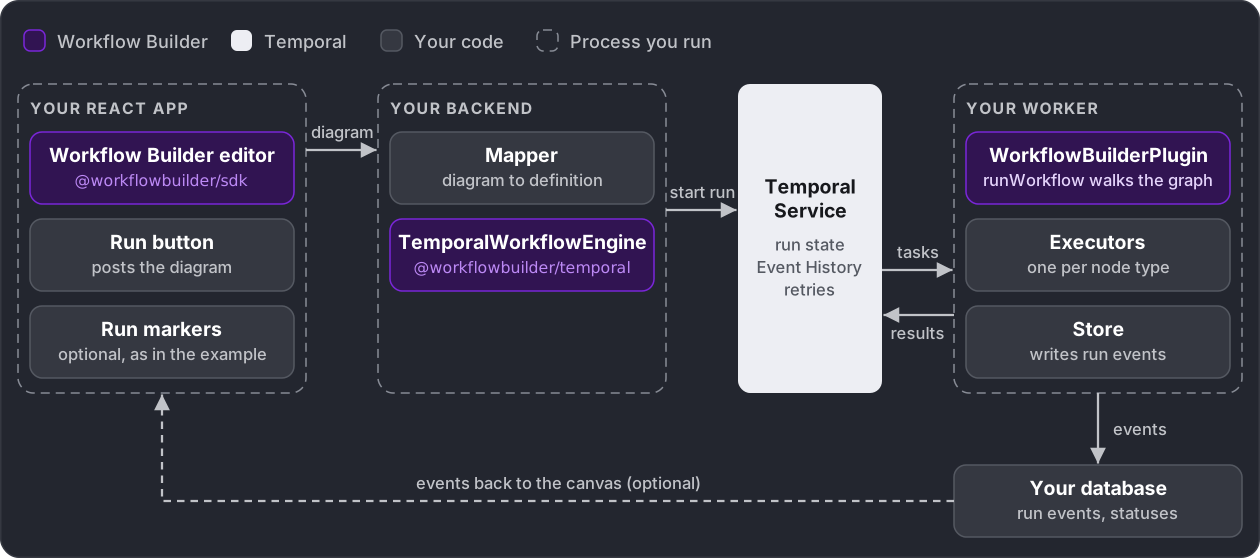
Three parts work together in a run.
Workflow Builder gives you two packages. The editor SDK (@workflowbuilder/sdk) runs in your React app, where people draw and configure the diagram. The Temporal plugin (@workflowbuilder/temporal) runs in your Worker. It walks the graph and runs each node the run reaches as its own executeNode Activity, Temporal’s unit of work with its own timeout and retries, so a failed node is retried without re-running the rest. It follows the branch each branching node picks and reports every step to your store. The same package gives your backend a client, TemporalWorkflowEngine, which starts runs, cancels them and delivers decisions.
Temporal keeps the state of each run and records every step in Event History, so a run survives a crashed or restarted Worker. The Temporal Service hands tasks to your Worker and runs none of your code.
Your code connects the editor to the Workflow and holds the business logic. Your backend maps the diagram to a definition and starts the run. One executor per node type does that node’s work, and a store writes run events to your database. Connection, credentials and deployment stay in your code, and the editor never talks to Temporal directly.
| On the canvas | On Temporal |
|---|---|
| A diagram, each time it runs | One Workflow Execution of runWorkflow, with Workflow Id execution-<executionId> |
| A node | One executeNode Activity |
| The node’s label | The Activity’s Summary in Event History |
The node’s type | The executor that runs it in your Worker |
| Values set in the properties panel | The node’s config, passed to its executor |
| A branching node’s branch | The nextPort its executor returns. Branches not taken are never scheduled |
| The start node | role: 'start', where the run begins |
Prerequisites
Section titled “Prerequisites”Before you start, set up the editor, a Node.js project for your backend and Worker, and a Temporal Service to run against.
- Editor: an app with the Workflow Builder SDK, see Quick Start.
- Node.js project: TypeScript, Node.js 20.3+ and ESM (
"type": "module"), for your backend and Worker. The snippets assume you run TypeScript with tsx, as the example does: relative imports have no extension, andworkflowsPathpoints atworkflows.ts. Keep it separate from the editor app, because the Worker runs in Node.js, not in the browser. - Temporal Service: the Temporal CLI for local work, or any Temporal Service.
Everything installs in your Node.js project with one command. The editor needs no new packages, only the function from Send the diagram.
npm install @workflowbuilder/temporal @temporalio/worker @temporalio/activity @temporalio/client @temporalio/workflow @temporalio/pluginThe @temporalio/* packages are peers of the plugin and must all be one version, otherwise the Worker breaks at run time, not at install.
In the editor
Section titled “In the editor”The editor is your app with the Workflow Builder SDK. Two things in it matter for a run: the node types people can drag onto the canvas, which the SDK calls the palette, and a way to start the run.
Node types
Section titled “Node types”The type you give a palette item is also the key of its executor in the Worker, so the editor and the Worker share one list of node types. Mark the item a run starts from with isStartNode: true, and the editor copies the flag onto the node when it is dropped. A branching node built on the NodeType.DecisionNode template generates one handle per branch, and its executor returns the handle of the branch the run takes. See Add a custom node for the rest of a palette item.
import type { PaletteItem } from '@workflowbuilder/sdk';
import { defaultPropertiesData } from './default-properties-data';import { type TriggerNodeSchema, schema } from './schema';import { uischema } from './uischema';
export const trigger: PaletteItem<TriggerNodeSchema> = {  type: 'trigger', // the executor key in the Worker  isStartNode: true,  icon: 'Lightning',  label: 'Trigger',  description: 'Starts the workflow',  defaultPropertiesData,  schema,  uischema,};
Send the diagram
Section titled “Send the diagram”runDiagram reads the diagram data with getStoreDataForIntegration() and sends only its nodes and edges to your backend, which starts the run.
import { getStoreDataForIntegration } from '@workflowbuilder/sdk';
export async function runDiagram(): Promise<string> {  const { nodes, edges } = getStoreDataForIntegration();  const response = await fetch('/api/runs', {    method: 'POST',    headers: { 'Content-Type': 'application/json' },    body: JSON.stringify({ nodes, edges }),  });  if (!response.ok) throw new Error(await response.text());  const { executionId } = (await response.json()) as { executionId: string };  return executionId;}
Call runDiagram from a Run button anywhere on the page with the editor. getStoreDataForIntegration() reads the editor’s store, not a component, so the button can sit outside the editor. To place it inside the editor, add it with an editor plugin. The example does this in run-button.tsx and plugin.ts. The executionId that runDiagram returns identifies the run, for example to show it on the canvas.
A browser sends a CORS preflight before it posts JSON to another origin, and the backend in this guide does not answer it. Serve the editor and the backend from one origin instead, for example with a Vite proxy:
import react from '@vitejs/plugin-react';import { defineConfig } from 'vite';
export default defineConfig({  plugins: [react()],  server: { proxy: { '/api': 'http://127.0.0.1:3210' } },});
On your backend
Section titled “On your backend”Your backend receives the diagram from the editor, maps it to a definition the plugin can run and starts the run with TemporalWorkflowEngine, the plugin’s client.
import { TemporalWorkflowEngine, lazyClient } from '@workflowbuilder/temporal/client';import { randomUUID } from 'node:crypto';import { createServer } from 'node:http';
import { toDefinition } from './to-definition';
const engine = new TemporalWorkflowEngine({  client: lazyClient({ address: process.env.TEMPORAL_ADDRESS }),});
createServer(async (request, response) => {  if (request.method !== 'POST' || request.url !== '/api/runs') {    response.writeHead(404).end();    return;  }  // An error thrown in this async handler would stop the whole process.  try {    let body = '';    for await (const chunk of request) body += chunk;
    const workflowId = 'my-diagram'; // the diagram's id, not the Temporal Workflow Id    const executionId = randomUUID(); // one run    await engine.submit({      workflowId,      executionId,      definition: toDefinition(JSON.parse(body), workflowId),      triggerPayload: {},      variables: {},      global: {},    });    response.writeHead(201, { 'Content-Type': 'application/json' }).end(JSON.stringify({ executionId }));  } catch (error) {    response.writeHead(400).end(error instanceof Error ? error.message : String(error));  }}).listen(3210);
The engine connects on its first call, not when your backend starts, so your backend can start before Temporal does. If the connection fails, that call throws and the next call tries again. lazyClient closes the connection of each failed attempt, which a factory built on Connection.connect would leave open. A single catch keeps the process up, and the example’s bridge.ts also tells a bad diagram (400) from a Temporal error (502).
Get the diagram
Section titled “Get the diagram”runDiagram sends the diagram’s nodes and edges in the request body. If your backend already saves diagrams (see Persistence), it can load the diagram by workflowId instead.
Describe your node types
Section titled “Describe your node types”The mapper and the Worker share one type with a variant per node type.
import type { BaseNode } from '@workflowbuilder/temporal';
type Condition = { x: string; comparisonOperator: string; y: string; logicalOperator: 'AND' | 'OR' };type Branch = { label: string; sourceHandle: string; conditions: Condition[] };
type TriggerNode = BaseNode & { type: 'trigger'; config: Record<string, unknown> };type ActionNode = BaseNode & { type: 'action'; config: { message: string } };type DecisionNode = BaseNode & { type: 'decision'; config: { decisionBranches: Branch[] } };export type MyNode = TriggerNode | ActionNode | DecisionNode;
Branch is what the editor saves for each branch of a branching node. The example’s nodes.ts also lists the comparison operators.
Map the diagram
Section titled “Map the diagram”The plugin does not read the editor’s diagram format, so a mapper turns nodes and edges into a WorkflowDefinition, a plain graph of nodes and edges with nothing Temporal-specific in it. type must match an executor key, and label becomes the node’s Summary in Event History. The graph has to meet these rules, or the run fails:
- Exactly one node has
role: 'start', and no edge leads into it. - Every other node has at least one incoming edge. A node left unconnected on the canvas fails the run before any node executes.
- The graph has no loops. A run whose graph has one fails as stalled.
Check these rules in the mapper if the editor allows such diagrams. The example blocks edges into the start node in the editor with isValidConnection, see its app.tsx.
| From the editor | To the definition |
|---|---|
node id | id |
data.type | type, the executor key |
data.properties without label, errorPolicy and errors | config |
data.properties.label | label, the Summary in Event History |
data.properties.errorPolicy | errorPolicy, what the run does when the node fails |
data.isStartNode | role: 'start' |
edge source, target | sourceNodeId, targetNodeId |
edge sourceHandle | sourceHandle, what nextPort matches |
import type { WorkflowDefinition } from '@workflowbuilder/temporal';
import type { MyNode } from './nodes';
// The part of getStoreDataForIntegration() the mapper reads.type Diagram = {  nodes: { id: string; data: { type: string; isStartNode?: boolean; properties?: Record<string, unknown> } }[];  edges: { id: string; source: string; target: string; sourceHandle?: string | null }[];};
export function toDefinition(diagram: Diagram, workflowId: string): WorkflowDefinition<MyNode> {  return {    workflowId,    nodes: diagram.nodes.map((node) => {      const { label, errorPolicy, ...config } = node.data.properties ?? {};      delete config.errors; // the editor's form validation state, not configuration      return {        id: node.id,        type: node.data.type,        config,        label,        errorPolicy, // set by the SDK's errorPolicyProperty; the runner reads it here, not in config        ...(node.data.isStartNode ? { role: 'start' } : {}),      } as MyNode;    }),    edges: diagram.edges.map((edge) => ({      id: edge.id,      sourceNodeId: edge.source,      targetNodeId: edge.target,      sourceHandle: edge.sourceHandle ?? undefined,    })),  };}
A complete version with validation is in the example’s to-definition.ts.
Start the run
Section titled “Start the run”engine.submit in server.ts starts the run. workflowId names your diagram, and a new executionId identifies each run of it. triggerPayload is the data the run starts with, and executors read it as context.triggerPayload (the example passes an amount and a customer name). global is meant for the editor’s global variables, but runDiagram above sends only the nodes and edges, so pass {} unless your executors read them. variables holds values your backend adds at start. All three are stored in Event History as they are, so keep secrets in the Worker’s environment.
Cancel a run and deliver a decision
Section titled “Cancel a run and deliver a decision”The same engine stops a run and delivers a person’s decision to a run that waits for one (see Executors).
await engine.cancel(executionId);
const { error } = await engine.resolveNode({  executionId,  nodeId: 'approval-1',  resolution: { output: { approved: true }, nextPort: 'approved' },});
resolution is what the waiting node would otherwise return itself: its output and, for a node with branches, the nextPort to follow. When the run refuses a decision, resolveNode returns error with a code instead of throwing. For example, verdict_already_delivered means the node was already decided and node_not_waiting means it is not waiting, so your backend can tell the person why.
In your Worker
Section titled “In your Worker”The Worker is the Node.js process that runs your Temporal code, and the Temporal plugin runs inside it. The plugin’s Workflow walks the diagram, and its executeNode Activity calls your executor for each node. You give it the executors, a store and a workflows.ts module.
import { NativeConnection, Worker } from '@temporalio/worker';import { WorkflowBuilderPlugin } from '@workflowbuilder/temporal';import { fileURLToPath } from 'node:url';
import type { MyNode } from './nodes';
const plugin = new WorkflowBuilderPlugin<MyNode>({  executors: {    trigger: (_node, context) => ({ output: context.triggerPayload }),    action: (node) => ({ output: { message: node.config.message } }),    decision: (node, context) => {      // pickBranch is your branching logic, for example evaluating each branch's conditions.      const branch = pickBranch(node.config.decisionBranches, context);      return { output: { branch: branch.label }, nextPort: branch.sourceHandle };    },  },  store: {    async emitExecutionEvent(executionId, sequence, type, payload, nodeId) {      /* insert a row */    },    async updateExecutionStatus(executionId, status, errorMessage, outcome) {      /* update the run */    },  },});
const worker = await Worker.create({  connection: await NativeConnection.connect({ address: process.env.TEMPORAL_ADDRESS }),  taskQueue: plugin.taskQueue,  workflowsPath: fileURLToPath(new URL('workflows.ts', import.meta.url)),  plugins: [plugin],});
await worker.run();
workflows.ts
Section titled “workflows.ts”The workflowsPath above points at a module that has to export the plugin’s Workflow, and one line does it. The TypeScript SDK bundles Workflow code from a single workflowsPath. The plugin leaves that slot to you so your own Workflows can share the bundle.
export { runWorkflow } from '@workflowbuilder/temporal/workflow';Keep the export named runWorkflow, because the client starts the Workflow by that name.
If you give some node types their own timeout and retry settings (nodeActivityProfiles), pass the same map to the plugin, next to executors and store, and build the Workflow from it in this file:
import { createRunWorkflow } from '@workflowbuilder/temporal/workflow';
import { nodeActivityProfiles } from './node-activity-profiles';
export const runWorkflow = createRunWorkflow({ nodeActivityProfiles });
The map’s module becomes part of the Workflow bundle, so it may import only from @workflowbuilder/temporal/workflow, which also exports DEFAULT_NODE_ACTIVITY_PROFILE and the NodeActivityProfiles type. The package’s root entry pulls in @temporalio/activity, and the Worker then refuses to bundle the Workflow.
The plugin only checks the map when the Worker starts. The Workflow is what applies it, because Temporal takes an Activity’s timeout and retry policy from the Workflow that schedules it. A map given only to the plugin passes the deploy, and every node runs with the default profile: 2 attempts, each limited to 10 minutes. The package README shows the format of the map.
Executors
Section titled “Executors”An executor is a function that runs one node type, and it is the only place where you write what your nodes do. Executors are keyed by node type (see Node types). Pass your node union to the plugin as its type parameter, and TypeScript refuses to compile until every node type has an executor.
Each executor returns { output }. A branching node also returns nextPort, the sourceHandle of the edge the run follows. Take it from the node’s config, where the editor keeps the handle id of each branch (in the example, source:inner:review), instead of hardcoding it. If nextPort names a handle with no edge, the run ends with status incomplete, while Temporal shows the Workflow Execution as Completed. The example’s evaluate-branches.ts shows one way to pick a branch.
If an executor throws, Temporal retries that node’s Activity. By default a node gets 2 attempts, each limited to 10 minutes. Throw PermanentNodeExecutionError when another attempt cannot help, for example after a 404, and the node fails at once. TransientNodeExecutionError marks an error worth retrying, and an error of any other type is retried the same way.
An executor can also pause the run until a person decides. It returns { waiting: true }, the run waits in Temporal without holding a Worker, and your backend delivers the decision with engine.resolveNode (see Cancel a run and deliver a decision). More in Pausing a run for a human.
The store is where run events and statuses land, so your app can show them. Implement emitExecutionEvent and updateExecutionStatus against any database. The status becomes running as soon as a run starts, before its first node, so the first running is where you can record when the run started. A later one means a paused run resumed.
Both methods run in Activities, so a retried write can arrive twice. Make (executionId, sequence) unique and ignore a duplicate without an error, for example with ON CONFLICT DO NOTHING. A store that throws on it fails every retry of that write, and the run with it. Keep the first terminal status a run reaches and ignore a running or waiting that arrives after it. Keep the outcome that arrives with completed, because it is the run’s result.
See the run on the canvas
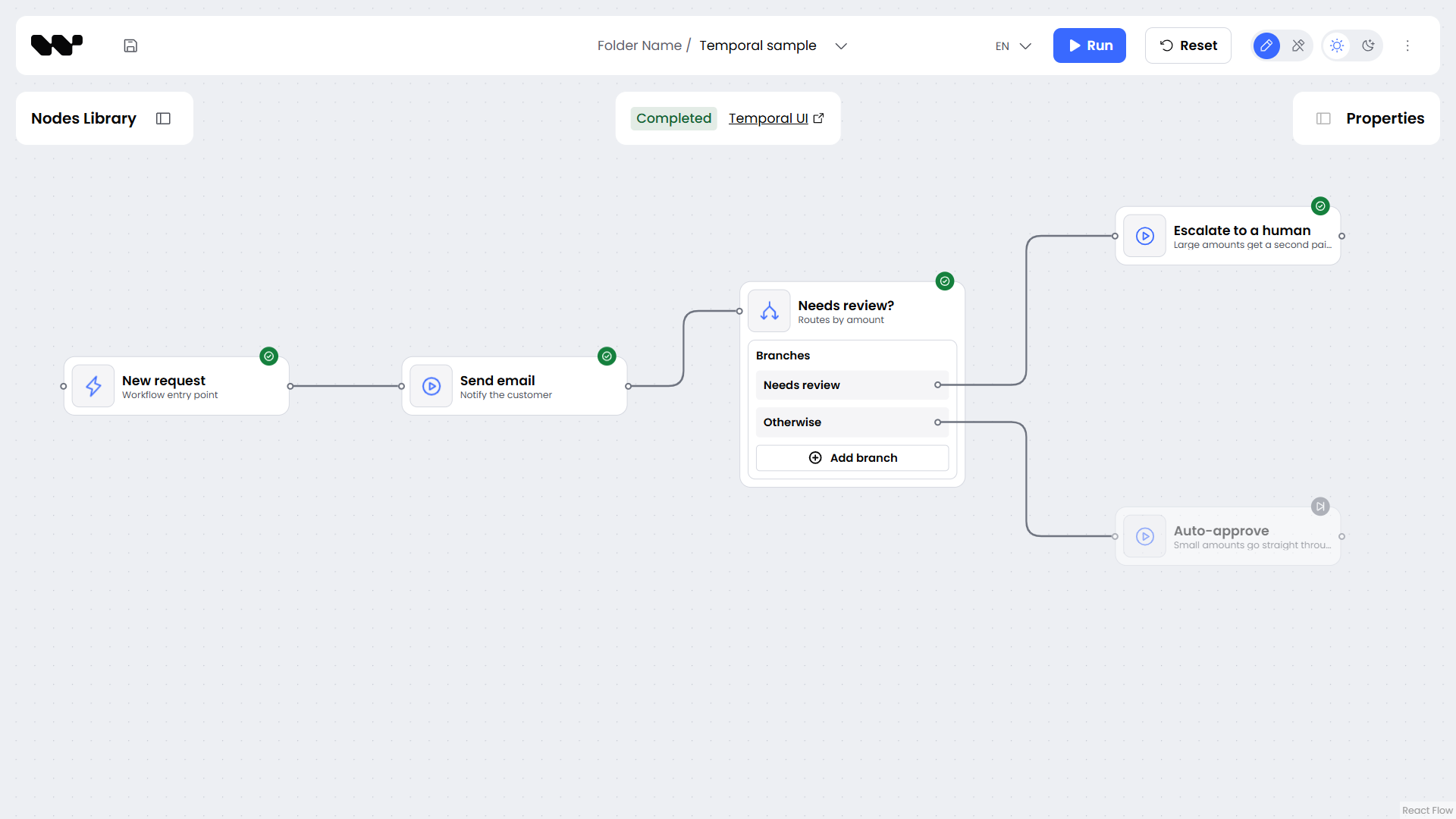
Section titled “See the run on the canvas”Your store receives an event each time a node starts, completes, fails, is skipped or starts waiting for a decision. To show the run on the canvas, stream these events back to the editor and mark each node with a component decorator in the OptionalNodeContent slot. The editor SDK has no run view of its own. The example draws one status marker per node: it streams the events in bridge.ts and draws the markers in node-markers.tsx.
AI Studio has a fuller run view, with an execution log and a Decide button for waiting nodes. Its code is in apps/ai-studio/src/components/execution and apps/ai-studio/src/components/human-decision, and the reference backend in apps/backend streams the events to it. Both are reference code for local development, and the backend has no authentication.
Run it
Section titled “Run it”Run your app
Section titled “Run your app”A run started without a polling Worker waits in Temporal UI with no error, so keep this order.
- Start Temporal with
temporal server start-dev. - Start your Worker.
- Start your backend.
- Open the editor and click Run.
- Open Temporal UI at
http://localhost:8233.
Try the example
Section titled “Try the example”If your setup does not behave as expected, compare it with the ready example, a mini project you can download and run.
npx degit synergycodes/workflowbuilder/examples/workflow-builder-temporal workflow-builder-temporalThen start each part in its own terminal, from the workflow-builder-temporal folder. In the example, the backend and the Worker are one process: worker.ts also starts the bridge that the editor posts to.
temporal server start-devcd worker && npm install && npm startcd editor && npm install && npm run devOpen the editor and click Run. In the example’s editor, each node gets a status marker as Temporal runs it, and the branch not taken turns grey. The Temporal UI link in the run panel opens the run. The markers and the run panel are the example’s own code, not part of Workflow Builder, see See the run on the canvas.
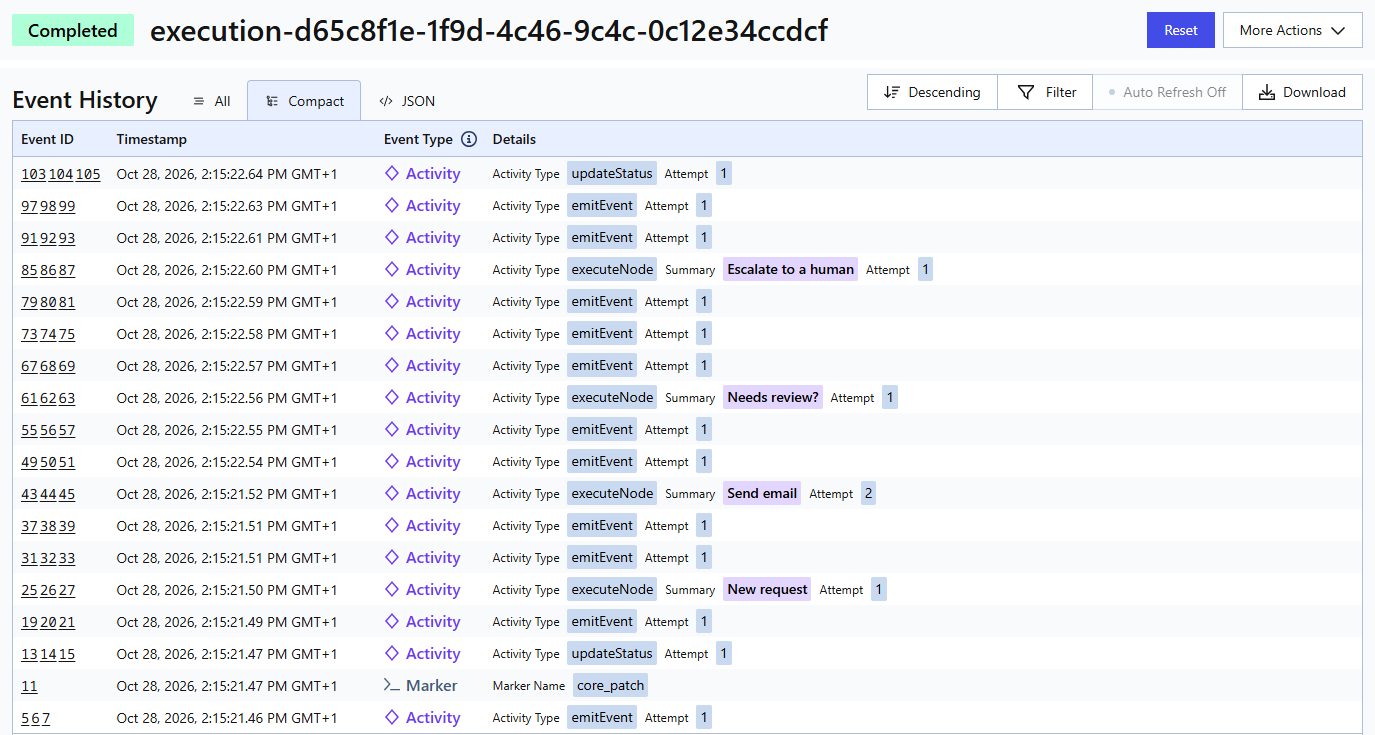
What you see in Temporal UI
Section titled “What you see in Temporal UI”Temporal UI shows how the diagram maps onto Temporal. Each run of the diagram is one Workflow Execution, and each node is an executeNode Activity with the node label as its Summary. The emitEvent and updateStatus Activities between them are the plugin writing to your store. The core_patch Marker near the start records that the run started on plugin code from 0.3.0 or later, so a Worker replays it on the same code path. A successful run is Completed, with one executeNode Activity per executed node. Send email shows attempt 2, because the example fails that node’s first attempt on purpose (simulateOutage in its config) so you can see Temporal retry it.
Production
Section titled “Production”Run against Temporal Cloud or a self-hosted Temporal Service. The Temporal plugin does not configure the connection. The address, TLS and API key go into NativeConnection.connect in your Worker and into lazyClient in your backend. A namespace other than default goes into Worker.create and into the second argument of lazyClient, { namespace }.
Each executed node adds its executeNode Activity and two emitEvent Activities (node started, node completed or failed) to Event History, and a skipped node adds one emitEvent. The plugin does not use Continue-As-New, so size very large diagrams against Temporal’s Event History limits.
Event History stores the inputs of every run, including variables, as plain data. To encrypt them, add a Payload Codec.
Next steps
Section titled “Next steps”@workflowbuilder/temporalREADME: per-node timeouts and retries, failure classification, pausing a run for a human, versioning.- Temporal TypeScript SDK: Workers, Workflows, deployment.