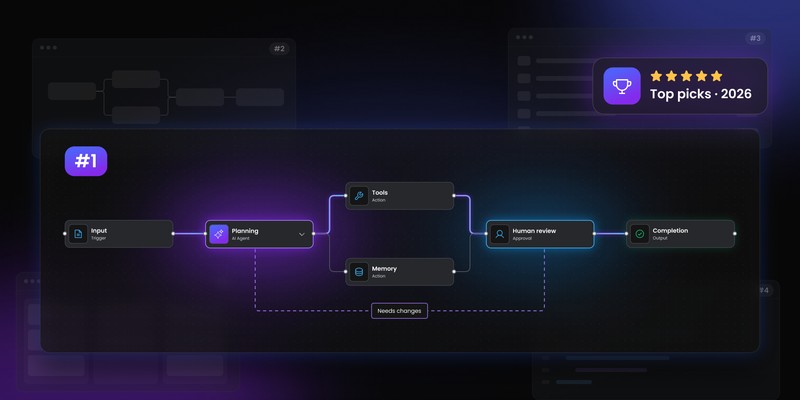
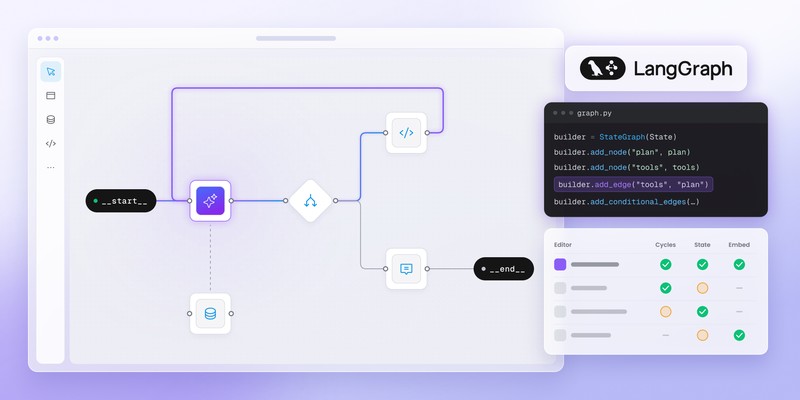
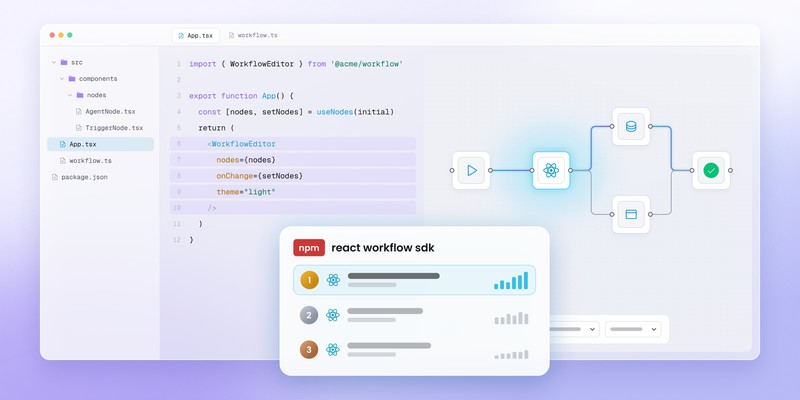
Best backend workflow engines for custom workflow builders

You’ll learn
- What a backend workflow engine does after a user publishes a workflow
- Which execution engines suit product automation, business processes, data jobs and internal tools
- Where Temporal, Camunda, Conductor OSS, AWS Step Functions, Prefect and Windmill differ
- How to connect Workflow Builder to an execution layer without exposing backend complexity to customers
A visual workflow builder helps customers design automation inside your product. It does not, on its own, retry failed actions, persist long-running state or resume a workflow after an outage.
That work belongs to the backend execution layer.
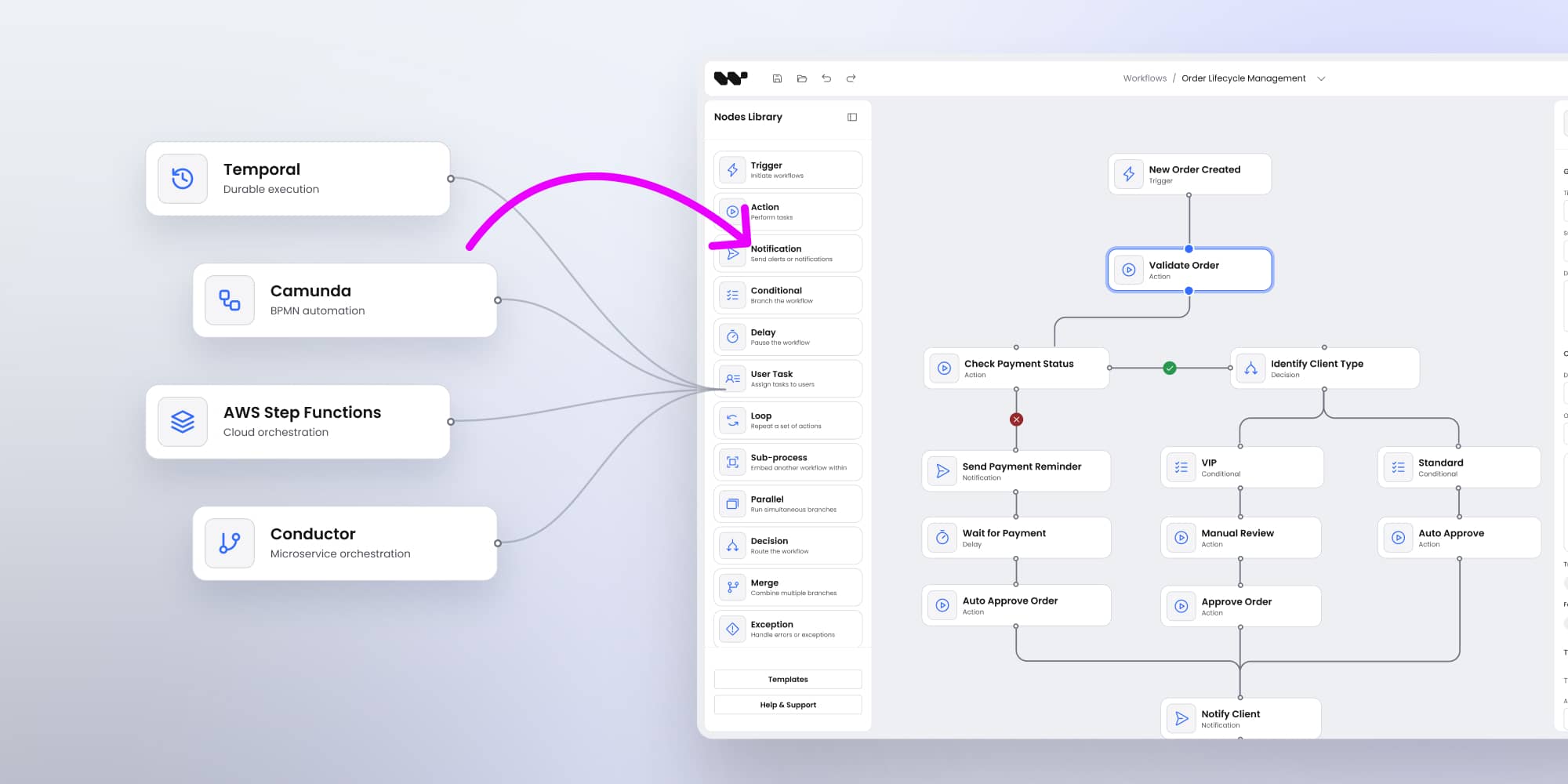
For product teams, the cleanest architecture separates the customer-facing workflow editor from the engine that runs the workflow. Workflow Builder gives you the visual authoring layer: a branded canvas, custom nodes, configuration forms and workflow JSON. Your backend validates that definition, maps supported actions to your services, then passes execution to the runtime that fits your infrastructure.
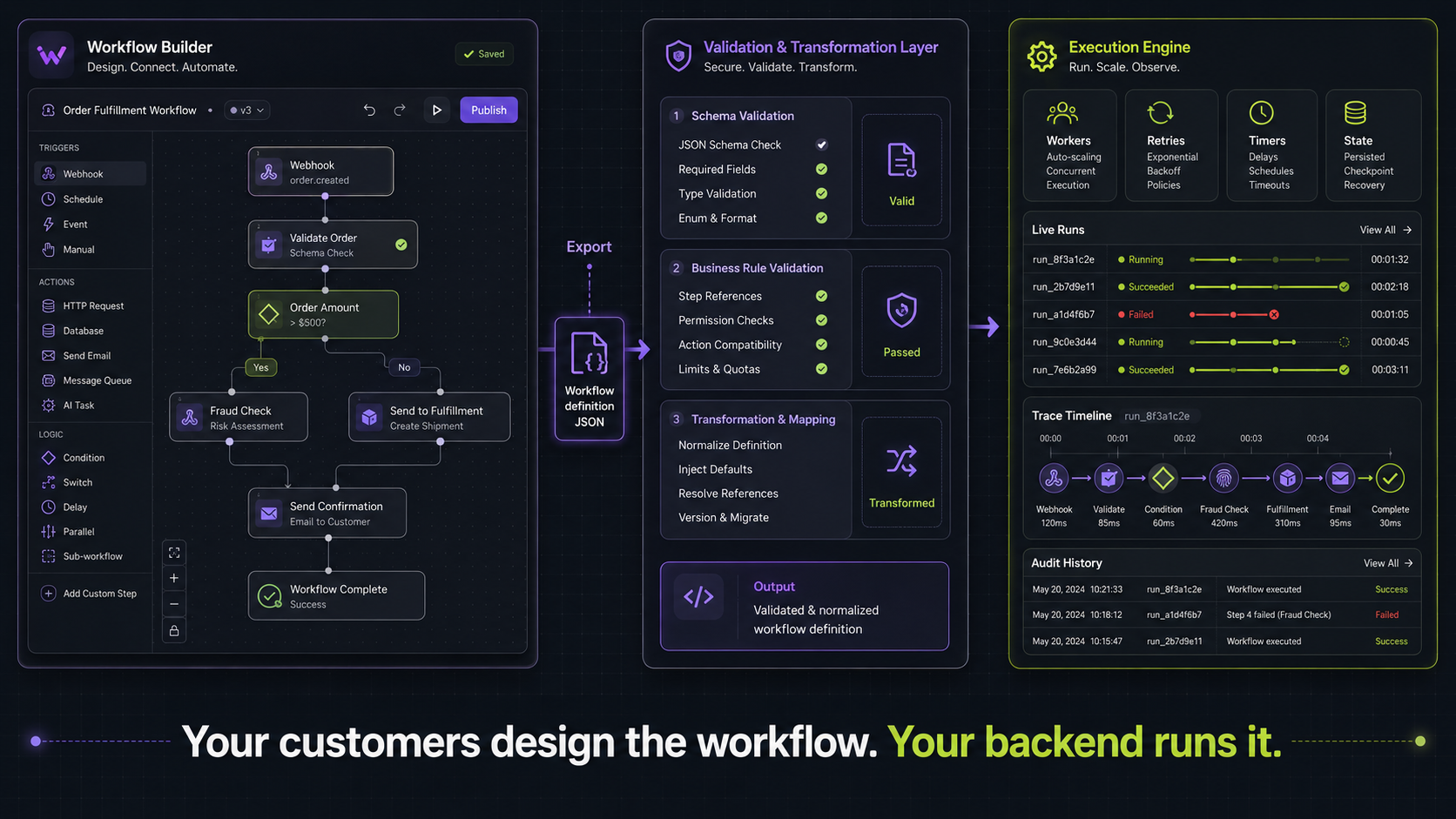
A workflow builder and a workflow engine are not the same thing
A workflow builder gives people a way to create a process visually.
They can connect actions, define conditions, choose triggers and configure fields. In a SaaS product, that is often the part customers see. It needs to match the product’s terminology, permissions and visual style.
A backend workflow engine runs the process after someone clicks publish.
It handles the parts that get difficult fast:
- retrying an API call after a temporary failure;
- waiting for an approval without holding a server process open;
- keeping state when a worker crashes;
- coordinating several backend services;
- recording what happened during a workflow run;
- cancelling work safely when a customer changes their mind.
These are separate concerns. A canvas can look polished but still leave the hard execution work unsolved. An orchestration engine can run reliably but still give customers a developer-oriented experience that feels foreign inside a SaaS product.
The better model is simple:
- Workflow Builder gives customers and internal users a visual authoring surface.
- Your backend stores, validates and versions the workflow definition.
- An execution engine runs the workflow and manages runtime state.
- Workers, services and APIs perform the actual business actions.
This division also keeps your options open. You can change the engine later without redesigning your entire customer-facing workflow experience.
Read more: Integrating Workflow Builder with backend and API
What to look for in a backend workflow engine
The right engine depends on the type of work your product needs to coordinate.
A workflow that waits for a legal review for two days has different needs from a data pipeline that runs every night. A customer-facing AI workflow has different failure modes from an internal automation script.
Before choosing a runtime, assess these areas.
Durable state and long-running waits
Some workflows finish in seconds. Others wait for a customer response, a human approval or an external callback.
A durable execution engine persists workflow state as work progresses. When a process pauses or a worker restarts, it can continue from the right point rather than start again.
This becomes especially important for approval flows, onboarding journeys, agent workflows and complex cases that cross several services.
Retry and failure handling
A production workflow needs more than a generic “retry three times” rule.
You may need a retry with increasing backoff for a rate-limited API, a fallback path for a failed enrichment provider or an escalation after a payment action fails. Some operations also need compensation logic. If a downstream step fails after a record was created, the workflow may need to reverse or flag the earlier change.
Deployment model
Some engines are self-hosted. Others are managed services. Some offer both options.
Self-hosting can suit teams with strict data residency, security or infrastructure requirements. A managed option can reduce operational overhead. The right choice depends on how much platform ownership your team wants.
Product-facing authoring experience
Native workflow UIs can be useful for developers and operators. They do not automatically work as a product feature.
Your customers should see the language of your domain. A customer support platform might expose nodes such as “Classify sentiment”, “Assign owner” and “Create escalation”. A finance product might use “Request review”, “Check policy” and “Approve payment”.
Your embedded editor controls the experience. The engine stays behind the scenes.
Worker and integration model
Most engines delegate real work to workers, functions or service integrations.
Check how easily the engine fits your stack. Consider your main languages, event bus, queueing tools, cloud provider and API security model. A powerful engine creates friction if every workflow step requires an awkward custom bridge.
Multi-tenancy and isolation
In a SaaS product, many customers share the execution infrastructure. Check how the engine separates them.
Can workloads be grouped per tenant or namespace? Can one customer’s retry storm slow another customer’s workflows? Can rate limits, quotas and permissions apply per account? Does execution history stay separated for audit and data-residency needs?
Some engines offer first-class constructs such as namespaces or per-tenant task queues. Others expect your backend to enforce isolation. Either can work, but decide where isolation lives before the first enterprise customer asks.
Cost and licensing model
Engines also differ in how they charge and what you may run in production.
Some are open source and free to self-host. Some are source-available and require a commercial licence for production use. Managed services usually charge per execution, per state transition or per compute time.
Check the licence before the architecture hardens: whether production self-hosting is allowed, whether embedding the engine behind a paid product needs an agreement and how costs scale with workflow volume.
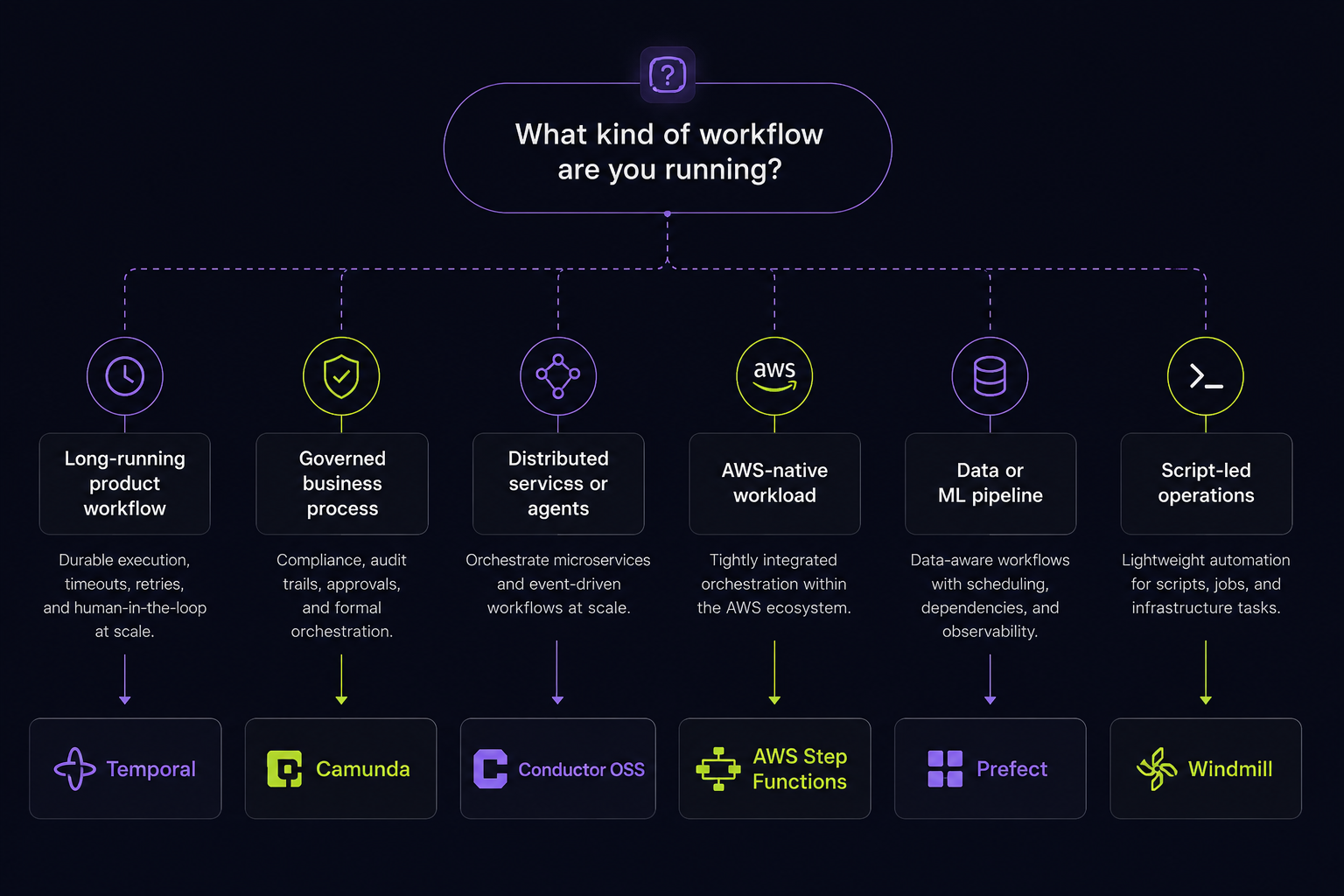
Temporal: best for durable product workflows
Temporal is the strongest choice when workflows need to survive long waits, worker failures and unreliable dependencies.
It is built around durable execution. Workflow state is recorded as an event history. When a worker crashes or infrastructure restarts, Temporal can replay that history and continue work from the latest recorded point.
That is valuable for processes such as customer onboarding, account provisioning, approval chains, document review, claims handling and AI agents that call tools over several stages.
A useful example is an onboarding workflow for a B2B product. A new account signs up. The system provisions a workspace, sends an invitation, waits for a domain verification event, creates default permissions and alerts an onboarding specialist if the customer gets stuck. The workflow may run for days. It should not lose its place because one worker restarts.
Temporal also supports retries, task queues, timers and signals. Signals matter when an external event changes the workflow state. A customer approval, uploaded document or confirmation from another service can resume the right workflow without a polling loop.
The trade-off is that Temporal is code-first. Developers define workflow logic and activities in supported SDKs. Temporal Web UI helps teams inspect runtime behaviour, but it is not designed as a customer-facing workflow authoring product.
That creates a clear fit with Workflow Builder.
Workflow Builder can expose a branded set of customer-safe nodes. Your backend validates the workflow JSON, maps those nodes to approved activities or child workflows, then submits the work to Temporal. Users work in your product. Engineers keep durable execution inside the runtime.
Choose Temporal when: your workflows can pause for a long time, call unreliable services, need a detailed execution history that can be exported for long-term audit or include human approval gates.
Think twice when: you mainly run short scripts, scheduled data jobs or infrastructure automation that already lives deeply inside AWS.
Read more:
- Temporal UI: why durable execution still needs a visual authoring layer
- Why Workflow Builder made Temporal its default execution engine
Camunda: best for governed business processes
Camunda is a strong choice for teams that need formal process modelling, decision logic and clear governance.
Its core strength is BPMN, a widely used process modelling standard. Camunda also supports DMN for decision logic. That makes it useful when a workflow needs to stay understandable across operations, compliance, product and engineering teams.
A regulated workflow may include human tasks, service tasks, decision tables, escalation paths and approval rules. For example, an insurance claim process may need to validate documents, route higher-risk claims to specialist review, apply policy rules and keep an auditable record of every decision.
Camunda gives teams a structured way to model and run those processes.
One planning note: Camunda 8 is source-available rather than open source. It is free for development, but production self-managed deployments require a commercial licence. A SaaS option is also available. The older open-source Camunda 7 Community Edition reached end of life in October 2025.
Camunda is particularly useful when business process ownership matters. An organisation may already have process analysts, BPMN models or a requirement to show how a workflow behaves during an audit.
The caution is product UX.
BPMN is powerful, but it can overwhelm customers who only need a narrow set of product actions. A customer should not need to understand every gateway, event type or process convention to build a useful automation.
Workflow Builder can sit in front of Camunda as the customer-facing configuration layer. Your product can expose a controlled set of domain-specific nodes. The backend can then start or parameterise predefined Camunda process models through APIs, workers or connectors.
That is different from claiming that Workflow Builder automatically converts any visual graph into BPMN. The translation and runtime contract remain your backend responsibility.
Choose Camunda when: your product serves enterprise teams with formal approvals, human tasks, governance requirements or BPMN-driven processes.
Think twice when: fast-moving product automation matters more than formal process modelling.
Read more: Building decision workflows in fintech: UI, governance and execution boundaries
Conductor OSS: best for distributed services and agent orchestration
Conductor OSS is a good fit for products that coordinate many APIs, workers and specialised backend services.
It supports workflow definitions in JSON or code. Teams can write workers in different languages while Conductor handles state persistence, retries, timeouts and flow control.
That suits distributed SaaS architecture.
Imagine a customer-operations workflow that checks account status, looks up usage data, generates an AI summary, creates a CRM task, sends a notification and waits for an account manager’s action. Each step may run in a different service. Conductor can coordinate them without forcing every team into one runtime.
It also has a clear place in agent orchestration. Tool calls, LLM calls, external APIs and human checkpoints can all create failure points. Conductor persists each step so work can continue after a crash or network problem.
Conductor OSS is the active continuation of the original Netflix Conductor project. Netflix archived its repository in December 2023, and the project now lives on as Conductor OSS, stewarded by Orkes and the community.
For Workflow Builder, the integration pattern is straightforward. The visual editor defines the business-level workflow. Your backend checks every node and maps supported nodes to registered Conductor task types. Conductor handles the execution state. Your workers focus on business logic.
This separation prevents customers from seeing internal worker details. It also lets platform teams change implementations without redesigning the visual editor.
Choose Conductor OSS when: your product coordinates microservices, APIs, workers or multi-step AI workflows across a distributed architecture.
Think twice when: you want a tightly managed cloud service, though Orkes, the project’s steward, offers managed Conductor, or a BPMN-led governance model.
Read more: How to add workflow execution to a visual workflow editor
AWS Step Functions: best for AWS-native workflows
AWS Step Functions is a practical choice when AWS already sits at the centre of your backend.
It uses state machines to coordinate tasks. It can work with AWS services, Lambda functions and supported HTTPS API calls. It also provides common workflow controls such as conditional branches, waits, parallel paths and map states.
Long waits are a Standard Workflow feature. Standard Workflows can run for up to one year, while Express Workflows run for up to five minutes.
That distinction matters. Standard Workflows fit long-running orchestration with stronger execution guarantees. Express Workflows fit high-volume, short-lived event processing, where lower cost and throughput matter more than long waits.
Step Functions is useful for workloads such as file processing, event-driven automation, order handling, data transformation and cloud-native microservice orchestration.
A product that already uses Lambda, ECS, EventBridge, SQS and DynamoDB may find Step Functions easier to adopt than another separate runtime. The team can keep orchestration close to services it already operates.
Its main advantage is operational simplicity inside AWS.
Its main limitation is portability. Step Functions is built around AWS infrastructure and Amazon States Language. That can be ideal for a committed AWS team. It can become a constraint when a product needs multi-cloud support, on-premises deployment or customer-managed execution environments.
Workflow Builder can still add real value here. Workflow Studio helps developers design state machines. It does not solve the product problem of giving your customers a branded, restricted workflow canvas inside your SaaS application.
Choose AWS Step Functions when: your stack is AWS-native and you want managed state-machine orchestration with strong service integrations.
Think twice when: infrastructure portability or self-hosted deployment matters.
Read more: Workflow Builder vs n8n: when to choose an embeddable workflow editor
Prefect: best for data and AI pipelines
Prefect is a strong option when your workflows behave like data pipelines.
It is Python-first and designed for teams that need to build, deploy, run and monitor production data workflows. It supports schedules, event-driven runs, state tracking, retries and deployment controls.
This makes Prefect a natural fit for analytics platforms, machine learning operations and data-heavy AI products.
For example, a workflow may pull data from a warehouse, validate records, enrich a dataset, run a classification model, write results back to storage and notify an analyst when a quality check fails.
That is different from a customer lifecycle workflow. It is closer to a pipeline with dependencies, scheduled runs and infrastructure requirements.
Workflow Builder can make such processes easier to configure inside a product. A user might work with nodes such as “Refresh dataset”, “Run quality check”, “Generate forecast” or “Notify analyst”. The backend can map each approved node to a Prefect flow or deployment.
Prefect is not the first choice for every workflow with an AI label. Choose it when the AI work is part of a data or Python-centric pipeline. For long-lived human approvals or high-stakes customer automation, a durable execution engine such as Temporal may be a better fit.
Choose Prefect when: your product runs data pipelines, ML jobs, scheduled data operations or Python-based AI workflows.
Think twice when: customer-facing workflow lifecycles and long human waits are central to the product.
Read more: Why AI platforms need visual orchestration layers
Windmill: best for developer-led automation and internal tools
Windmill is a useful option for script-led automation, internal tools and operational workflows.
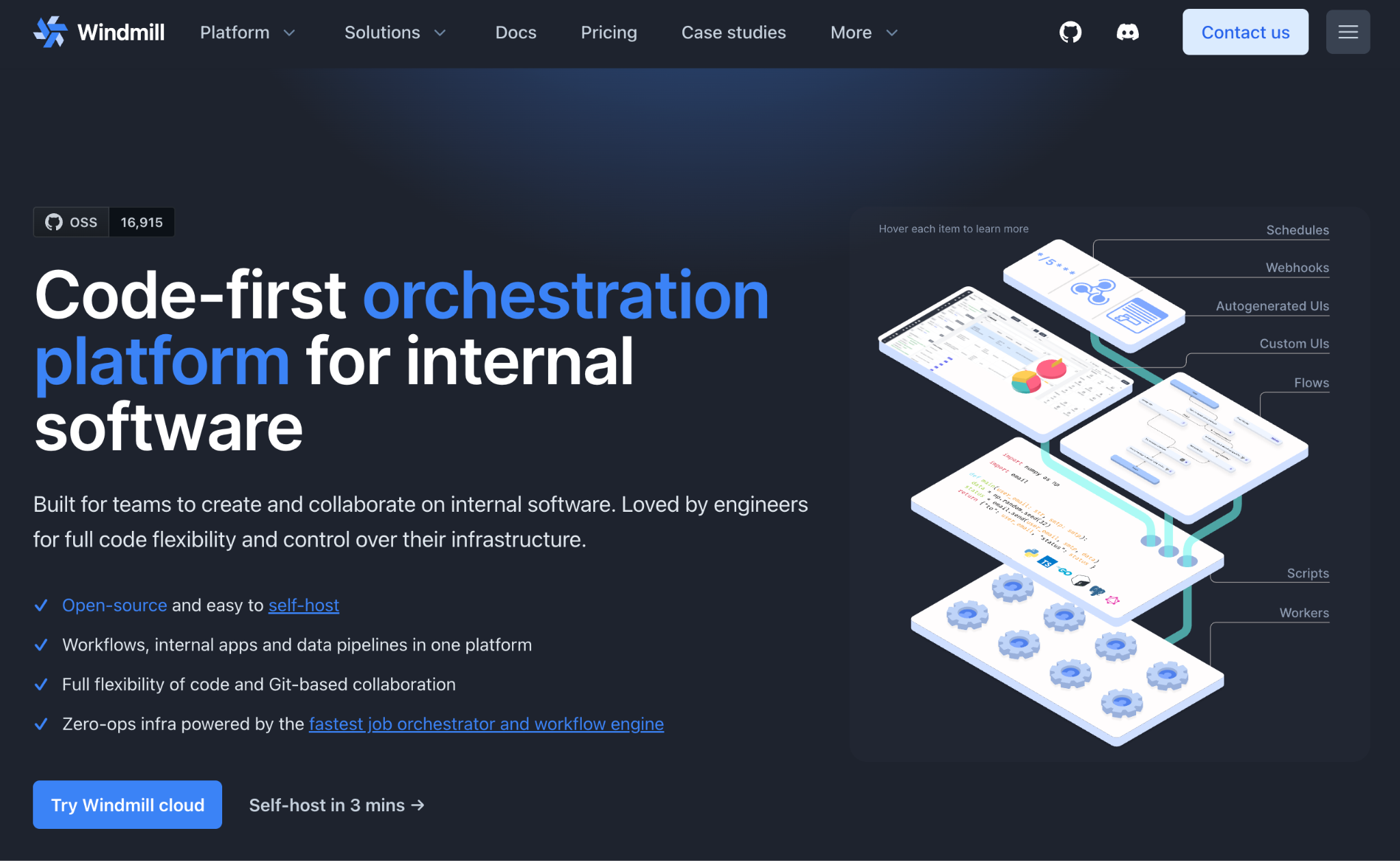
It lets teams build flows around code, schedules, webhooks and events. It also supports retries, error handlers, custom timeouts, delays and suspended approval steps.
That makes it practical for fast-moving internal operations.
A team might use Windmill for lead enrichment, account maintenance, support tooling, report generation, data fixes or internal approval requests. It can also sit behind a customer-facing product where the execution logic is mostly script-driven and does not need a specialised enterprise process engine.
Check the licensing before you embed it, though. Windmill’s Community Edition is AGPLv3, and commercial redistribution or managed services require a commercial agreement.
Windmill can handle waits and approvals. Suspended flows consume no workers and can wait indefinitely, so long-lived flows are supported unless a timeout is configured.
Still, it has a different centre of gravity from Temporal or Camunda. It is often a better fit for developer-led operations and flexible automation than for products that need a highly specialised durable-execution model or formal process governance.
Workflow Builder can give those flows a more polished product-facing surface. Customers see a controlled workflow canvas. The backend maps their choices to secure Windmill scripts or flow endpoints. Sensitive credentials and internal parameters remain on the server.
Choose Windmill when: your team needs flexible scripts, internal automation, webhooks and developer-led operational workflows.
Think twice when: your core product depends on strict BPMN governance or advanced durable execution across long customer journeys.
Licences as of July 2026: Temporal server is MIT licensed. Camunda 8 is source-available and production self-managed use requires a commercial licence. Conductor OSS is Apache 2.0. AWS Step Functions is a proprietary managed AWS service. Prefect is Apache 2.0. Windmill core is AGPLv3, with commercial licensing required for redistribution or managed-service scenarios.
What about Airflow, n8n, Inngest or Restate?
This comparison focuses on engines suited to embedded product workflows.
Apache Airflow and similar orchestrators are built primarily for batch data pipelines, scheduled workflows and, in newer versions, event-triggered orchestration. They can be extremely useful for data teams, but they are not usually the best fit as a product execution layer behind a customer-facing workflow builder.
n8n is a full automation platform. Its OEM offering can surface the n8n canvas inside another product, but that means exposing n8n’s editor rather than running a headless engine behind your own custom-built workflow UI.
Inngest and Restate offer durable execution in the same family as Temporal, with different deployment and developer-experience trade-offs. They are especially relevant to AI workflows, event-driven functions and durable agents. The evaluation criteria above apply to them as well.
How Workflow Builder connects to backend engines
The integration should have a clear boundary.
Workflow Builder captures the product-level definition. Your backend validates it, maps supported node types to approved actions and passes execution to the orchestration layer you choose.
Store workflow definitions separately from workflow runs
A saved workflow is not the same as a running workflow.
Store the definition in your own database. Keep information such as workflow version, node configuration, ownership, permissions and publication status there.
Let the execution engine manage runtime state. That includes completed tasks, timers, retry attempts, errors and current status.
This separation makes versioning much safer. A customer can edit version two while version one continues for existing cases.
Validate before publishing
Do not trust workflow JSON merely because it came from your own frontend.
Your backend should validate supported node types, required fields, allowed connections, tenant permissions, credentials, loop behaviour and engine-specific constraints.
A “Send message” node may require a valid approved channel. An “HTTP request” node may need an allowlist of permitted destinations. An “AI action” node may require budget limits or model restrictions.
Map visual nodes to controlled actions
A workflow canvas should configure business actions. It should not let users execute arbitrary code.
For example:
- “Create support ticket” maps to your support integration;
- “Request approval” maps to an internal service and a runtime wait;
- “Run enrichment” maps to a registered worker or script;
- “Generate AI summary” maps to an approved model and prompt template.
The visual layer controls configuration. The backend controls what can run.
Keep credentials out of the browser
Workflow definitions can reference a connection ID or integration ID. They should not store API keys, service tokens or privileged infrastructure settings.
The backend resolves credentials at runtime. That reduces exposure and gives your team a central place to rotate secrets or revoke access.
Show different levels of observability
Customers need product-friendly status messages such as “Waiting for approval”, “Completed” or “Needs attention”.
Engineers need deeper detail: task failures, worker logs, retry history and execution traces.
Both views matter. They should not be the same screen.
Which workflow engine should you choose?
Choose Temporal when durable execution is the main requirement. It is the strongest default for product workflows that wait, retry, resume and need a reliable execution history.
Choose Camunda when business process governance, BPMN and formal approval flows drive the architecture.
Choose Conductor OSS when the workflow coordinates distributed workers, services, APIs or multi-step agent tasks.
Choose AWS Step Functions when your infrastructure already runs on AWS and managed cloud orchestration is more useful than engine portability.
Choose Prefect when the workflows are data pipelines, ML jobs or Python-based automation.
Choose Windmill when the priority is flexible scripts, internal tools and operational automation.
The important question is not which engine has the most impressive diagram editor.
Your customers should not have to care about the engine. They should care that the workflow feels native to your product, runs reliably and makes problems visible before they become support tickets.
Workflow Builder gives you the authoring layer. The backend workflow engine gives you the execution layer. Keeping those jobs separate gives product teams more control over both.
- Can Workflow Builder replace Temporal, Camunda or another workflow engine?
No. Workflow Builder provides the visual authoring layer. It helps users create, configure and save workflow definitions. Your backend and execution engine manage runtime state, retries, timers, workers and service calls.
- Do all visual workflow builders need an orchestration engine?
No. A simple rule-based automation feature may work with a small custom backend service. A dedicated engine becomes more valuable when workflows include delays, retries, approvals, external dependencies or multi-step execution.
- Can one product use more than one workflow engine?
Yes. A product might use Prefect for data jobs, Temporal for customer lifecycle workflows and Windmill for internal operations. The visual authoring experience can still remain consistent when Workflow Builder sits above those runtimes.
- Which workflow engine is best for AI agents?
Temporal and Conductor OSS are strong options when AI workflows need durable state, retries, tool calls and long-running execution. Prefect can fit data-heavy AI pipelines. Inngest and Restate are also relevant for durable AI workflows and agents, especially when their event-driven or developer-experience model fits your stack.
- Is AWS Step Functions enough for customer-facing workflow automation?
It can be enough for execution if your product is AWS-native. It is not, on its own, a branded customer-facing workflow editor. Workflow Builder can provide the product UI while Step Functions runs the state machine behind the scenes.
- What should teams check before embedding Windmill behind a SaaS product?
Check licensing first. Windmill is useful for developer-led automation and internal tools, but commercial embedding, wrapping, redistribution or managed-service use may require a commercial agreement.
An entrepreneur and tech enthusiast, with over 14 years of experience building innovative diagramming solutions and tools across industries. Our interfaces help technical and non-technical users make informed business decisions.