Drag-and-drop workflow builder: How visual authoring fits into a SaaS product

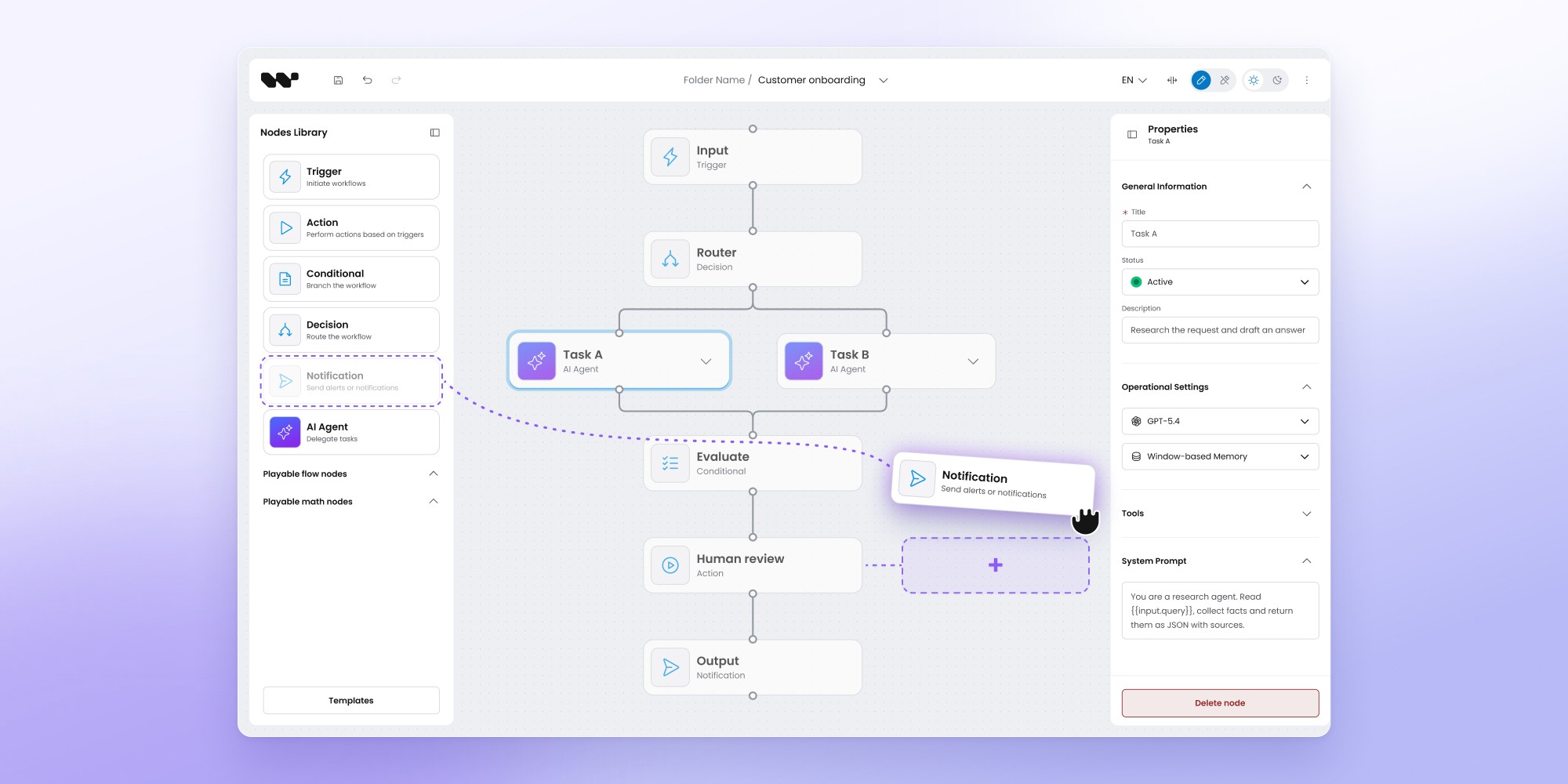
A drag-and-drop workflow builder needs more than a canvas with connected nodes. To work as a native SaaS feature, it needs configurable actions, validation rules, reliable editing tools, and a way to save workflows in a format the backend can understand. The visual editor doesn't have to run the workflows itself. Keeping authoring separate from execution gives product teams more flexibility and lets them build around their users' needs.
A drag-and-drop workflow builder is a visual interface for creating processes from configurable steps and connections. Users add nodes to a canvas, connect them into a flow, and configure the logic through forms or other controls instead of editing the underlying workflow definition directly.
For a SaaS product, the canvas is only the visible part. A useful workflow editor also needs a data model, validation, configuration UI, and a reliable way to hand the finished workflow to the backend that will eventually run it.
What is a drag-and-drop workflow builder?
A drag-and-drop workflow builder lets users assemble a process visually.
Each node represents something meaningful inside the product. It could be an action, condition, delay, approval, API request, AI agent, or a domain-specific operation that only exists in that application. Connections describe how the process moves between those steps.
Dragging boxes around is the simplest part of the experience. A usable editor needs to understand what those boxes mean, which connections are allowed, what each step requires, and how the finished graph should be stored.
For an embedded SaaS product, the goal usually isn't to give users a generic automation canvas – but to let them configure a part of your product without exposing the implementation underneath it.
A communications platform might let customers design messaging journeys. A telecom product could expose call routing visually. An AI platform may let users combine agents and tools into a process. Each uses familiar node-and-edge interactions, but the business rules behind the canvas are different.
What users do inside a visual workflow editor
Building a workflow should feel intuitive. Users drag actions onto a canvas, connect them, adjust their settings, and gradually turn individual steps into a working process.
Each action in a workflow editor requires specific handling to keep the workflow structure valid and consistent.
- Adding a node: The editor creates a valid object in the workflow document with the correct properties and default values.
- Moving a node: The editor updates its position without affecting the underlying workflow logic.
- Connecting two steps: The editor checks whether the connection is allowed and provides feedback if it isn't.
- Configuring an action: The editor displays the relevant fields, settings and validation rules based on the node type.
- Deleting or duplicating a step: The editor updates the workflow structure while maintaining valid relationships between nodes.
These are the basics. As workflows grow, users need more control over how they navigate and edit the canvas.
Essential editing capabilities include:
- Multi-selection and bulk actions to work with several nodes at once.
- Copy and paste to reuse existing workflow sections.
- Undo and redo to recover from mistakes without rebuilding steps.
- Zoom and pan to move between individual actions and the full workflow.
- Search or navigation controls to find specific steps in complex workflows.
- Clear validation feedback to identify broken connections and incomplete configurations.
A workflow editor can support every required node type and still be frustrating to use. Once users spend hours building and maintaining workflows, editing speed, predictable interactions, and reliable undo behavior become just as important as the automation logic itself.
A workflow builder requires more than a canvas
Libraries such as React Flow make it possible to create a node-based interface without writing the rendering layer from scratch. They provide useful primitives for displaying nodes and edges and handling canvas interaction.
A production workflow builder needs another layer above those primitives.
Workflow Builder is built on React Flow, for example, but adds the surrounding editor functionality needed for workflow authoring. Its current SDK includes a node library, schema-driven properties panel, persistence, auto-layout, edge routing, and editor state such as undo and redo.
We've written separately about what React Flow gives you and what a production workflow editor still needs, so we won't repeat the full build-vs-library discussion here.
For this article, the more useful question is what the authoring layer needs to represent.
Nodes should mean something in your product
Generic rectangles aren't enough once the editor represents real business logic.
A node may need a label, icon, configuration schema, input ports, output ports, validation rules, and metadata used later by the backend. Its visible React component is only one representation of a richer underlying object.
Suppose a marketing product has a Send Email node. The canvas needs to display it, but the workflow definition may also store the chosen template, sender configuration, audience settings, and references to data produced earlier in the flow.
A telecom product will have a completely different node model even if the canvas interaction looks similar.
Treating nodes as domain objects rather than isolated UI components makes it much easier to build configuration, validation, serialization, and backend integration around them.
Configuration matters as much as dragging
Most of the useful information in a workflow lives inside its nodes rather than in their position on the screen.
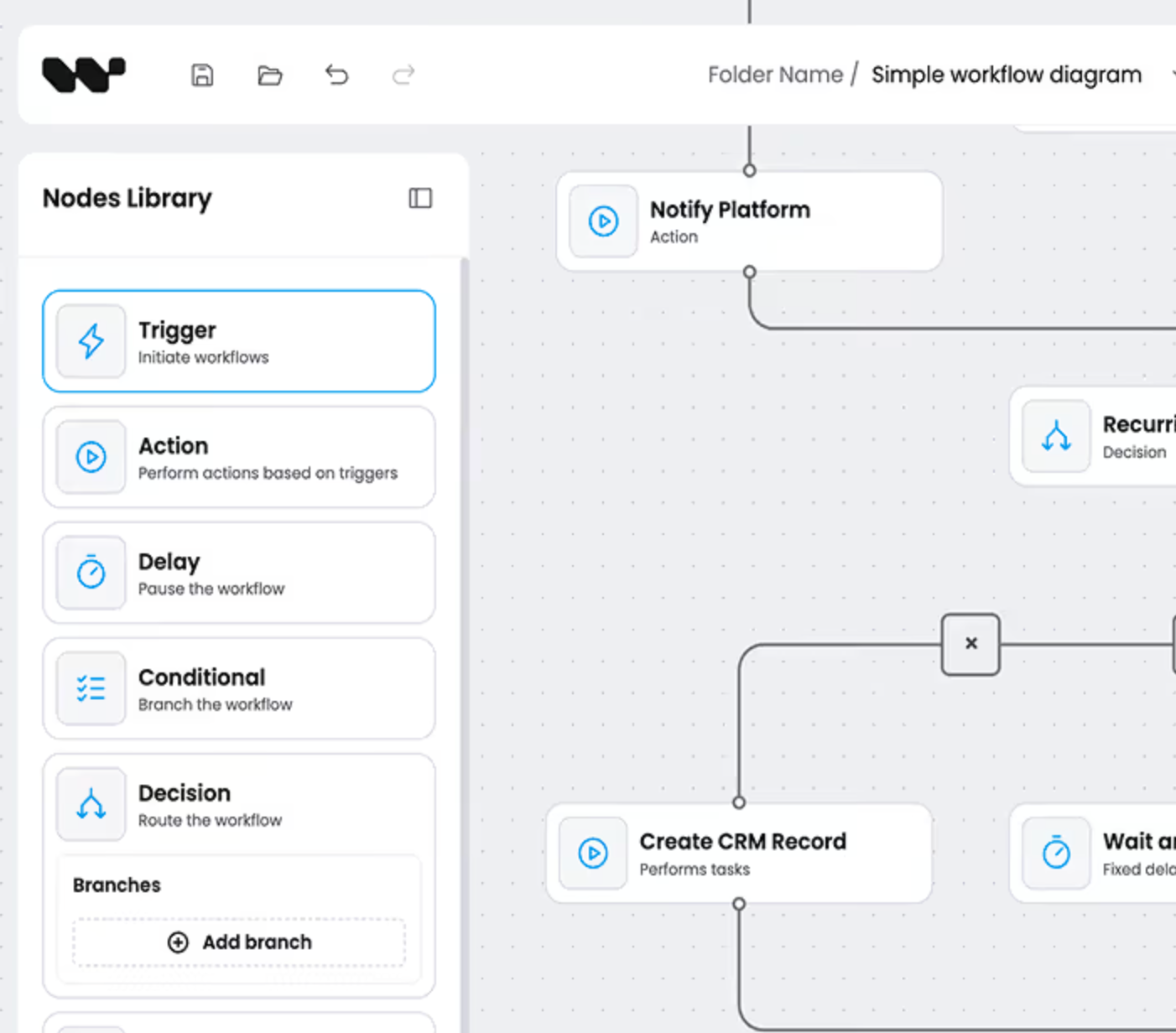
Adding an email node isn't enough. Someone still needs to choose what gets sent. An API node needs endpoint and request configuration. A delay may need a duration, while an approval step could require rules around who is allowed to approve it.
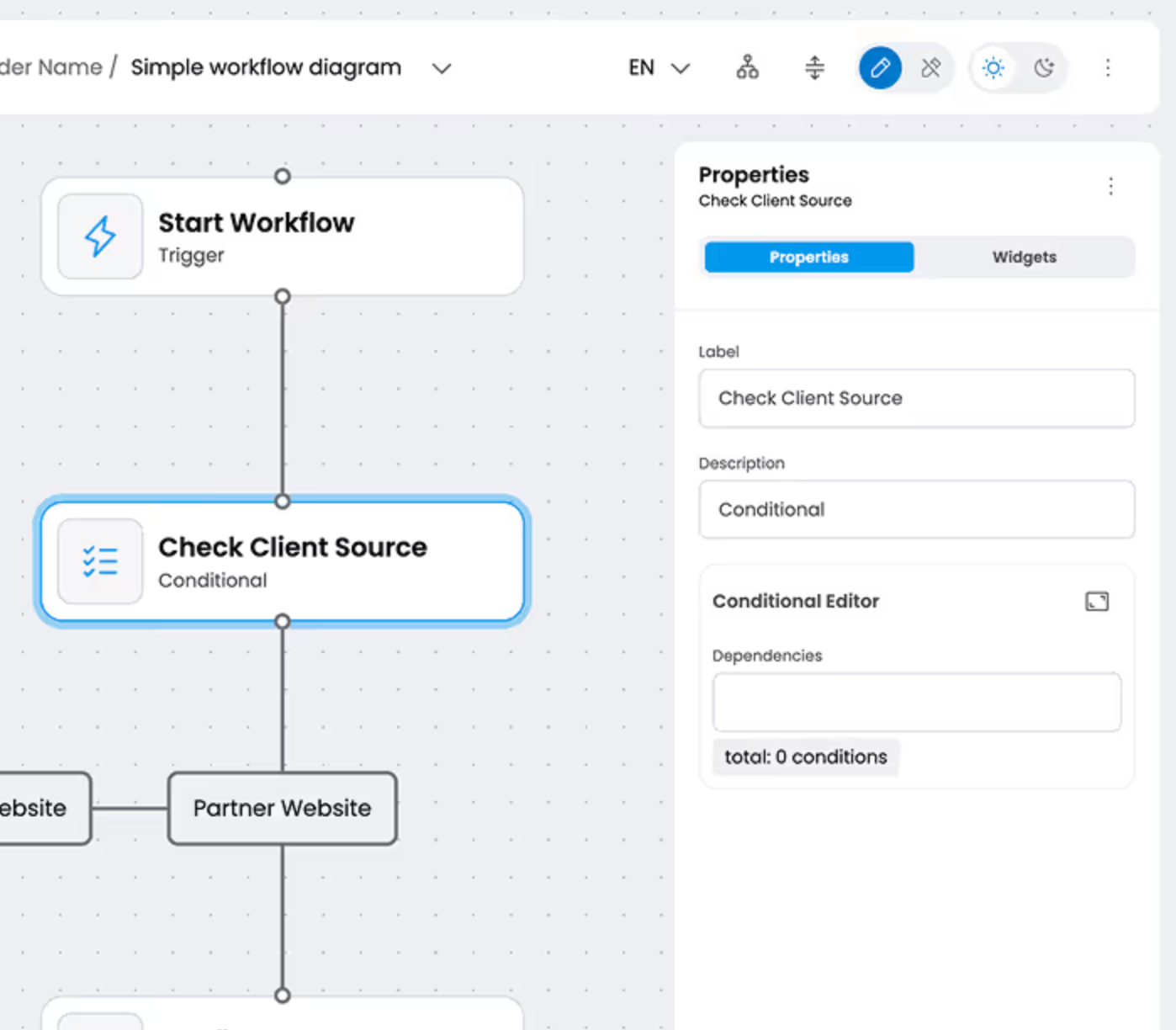
A properties panel gives users a structured way to edit those values without turning every node into a large form on the canvas.
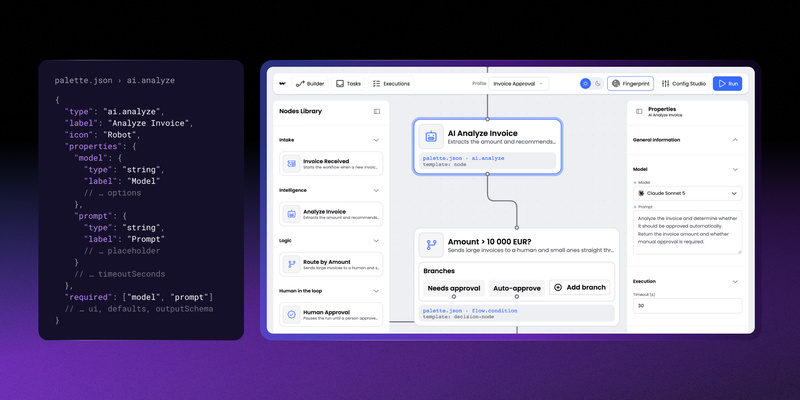
Workflow Builder generates its properties panel from node schemas. A team defines the data expected by a particular node type, and the editor uses that definition to create the appropriate configuration interface. The same schema can then support validation and serialization rather than keeping several independent representations of the node in sync.
Workflows also need data to move between nodes
A workflow becomes much more useful when one step can use information produced by another.
Imagine a support automation that classifies an incoming ticket and then sends a message based on the result. The message step needs some way to reference the classification output instead of relying only on values entered manually.
Workflow Builder's Variable Picker handles this through references stored in the workflow definition. Users select available upstream data through the interface, while the backend resolves the actual value during execution.
This kind of feature changes the workflow from a sequence of configured blocks into a process where steps can build on earlier results. It also introduces questions around type safety, scope, and what data should be available at each point in the graph.
Connections need rules too
Not every connection that looks valid on a canvas makes sense in the actual workflow.
A call-routing flow, for example, shouldn't send a caller to a node that can't accept incoming calls. A decision branch may need a fallback before the flow can go live. Self-connections might be prohibited in one application and essential for handling loops in another.
Connection validation should happen at two levels:
- While users build: Reject incompatible connections immediately. Check node types, permitted inputs and outputs, and domain-specific restrictions before an edge is created.
- Before execution: Validate the complete workflow for missing branches, unreachable nodes, required fallbacks, and other conditions that individual connection checks can't catch.
This separation keeps the editor responsive without leaving users to discover structural problems after publishing.
Workflow Builder's call-flow implementation applies domain-specific connection rules during editing, so users receive feedback before an invalid route becomes part of the flow.
There's also a visual challenge: valid connections still need to be readable. As workflows grow, crossing edges and crowded layouts can make even a correctly configured flow difficult to follow. Our technical deep dive into edge routing explores how to handle that problem.
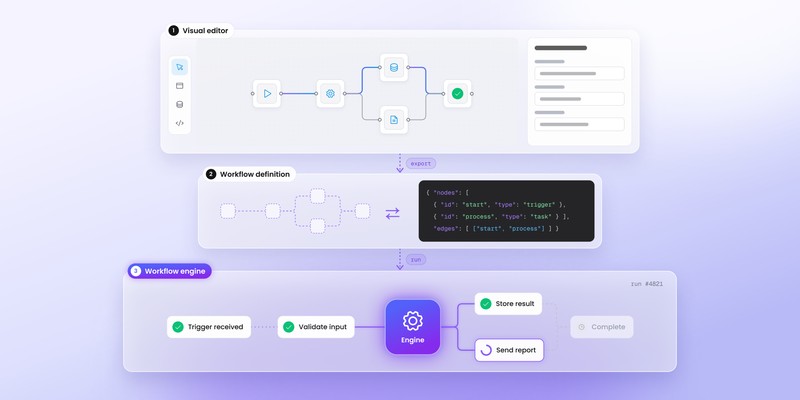
A drag-and-drop workflow builder isn't necessarily the workflow engine
This distinction becomes important once the editor has to connect to production infrastructure.
A visual workflow builder defines the process. It can collect configuration, validate the graph, and serialize the result into a structured format. Execution may happen somewhere else.
Our guide to workflow engines explains the runtime side in detail. In simple terms, the engine takes responsibility for running workflow instances and keeping track of their execution state.
An embedded editor can therefore sit above Temporal, Camunda, an internal runtime, or another backend chosen by the engineering team.
Workflow Builder uses the same separation in its own architecture. The editor can serialize a workflow into JSON and hand it to backend infrastructure, while Temporal is available as the reference engine integration rather than being built into the visual layer itself.
For a SaaS team, this means adding visual authoring doesn't automatically mean replacing the infrastructure already running its processes.
Visual workflow builder vs. Zapier or n8n: What's the difference?
The key distinction: An embedded workflow builder makes workflow authoring part of your product experience. Zapier and n8n provide standalone automation environments that users access separately.
Saving the workflow means saving more than coordinates
A useful workflow document needs enough information to reconstruct the process later and send it to other systems.
Node positions matter because users expect the canvas to look the same when they reopen it. Business configuration matters because the workflow needs to retain its behaviour. Connections describe the graph, while metadata may be needed for versioning or product-specific features.
Workflow Builder uses a typed workflow document rather than treating persistence as an arbitrary snapshot of React components. The editor state can be serialized and stored through local storage, an API endpoint, or another application-specific adapter.
Keeping the saved representation independent from the rendered components also makes backend processing much cleaner. A server doesn't need to know how the canvas looked in React to understand what the workflow means.
Visual validation becomes more important as users gain freedom
Giving users a flexible canvas also gives them more ways to create something invalid.
A small workflow might be easy to inspect manually. Larger graphs can contain disconnected nodes, impossible branches, missing configuration, or connections that violate rules specific to the product.
Good validation should surface those problems where users can act on them. Some errors can be blocked immediately. Others make more sense as warnings because the workflow is structurally valid but incomplete.
The exact validation model depends on what the workflow represents. A call-flow editor has different constraints from an AI agent builder, even when both use similar nodes and edges on screen.
Keeping validation close to the underlying workflow model makes it possible to express those rules without hard-coding them into every visual component.
Readability becomes an engineering problem on larger workflows
A drag-and-drop interface can feel effortless when a demo contains six nodes.
Real customer workflows tend to grow.
As nodes accumulate, edges begin crossing other elements and branches become harder to follow. Variable node sizes make layout less predictable, while adding more configuration directly onto the canvas consumes space.
Auto-layout and obstacle-aware edge routing become increasingly useful at this stage. They don't change what the workflow does, but they affect how easily someone can understand and safely modify it.
Workflow Builder uses ELK for automatic layout and provides smart edge routing as part of the editor layer. Teams building these pieces themselves can read our separate guides on edge routing and what React Flow doesn't provide out of the box.
Build the editor around the people who will author workflows
Workflow requirements change depending on who's using the canvas. Developers may be comfortable with technical concepts, while marketers need campaign-oriented actions and customer-service teams expect queues, routing rules, and channels.
Most teams I've spoken with aren't looking for another generic diagram editor. They know what users need to configure. The challenge is translating those requirements into an interface that feels like part of their product.
Workflow editor UX checklist
Before choosing components or designing the canvas, ask:
- Know your users: Who will create workflows, and how comfortable are they with technical concepts?
- Use familiar language: Do node names, actions, and labels match terminology users already recognize?
- Map domain-specific actions: Does the editor represent real tasks, such as campaign triggers, approval steps, or call-routing decisions?
- Hide unnecessary complexity: Can users build workflows without understanding APIs, execution engines, or backend infrastructure?
- Define available actions: Are users limited to valid operations supported by the product?
- Make configuration intuitive: Can users understand what each node does and what information they need to provide?
- Provide clear feedback: Are errors, missing settings, and invalid connections explained in terms users understand?
- Keep the experience consistent: Does the workflow editor follow the rest of the application's design patterns and navigation?
Teams may call this an authoring layer, workflow designer, studio, or visual layer. The terminology varies, but the goal remains the same: give users control over the workflows they need without exposing the infrastructure running behind them.
A workflow builder is only one part of the system
A visual workflow builder gives users a way to design processes. The workflow engine makes those processes run. Both matter, but they solve different problems.
Some SaaS products already have execution infrastructure in place. Others rely on engines such as Temporal or build their own runtime. Whichever approach you choose, the visual editor shouldn't force you into a particular backend architecture.
Keeping workflow authoring separate from execution gives your product more flexibility. You can introduce new node types, improve the editing experience, or change how workflows execute without asking customers to relearn the interface.
For product teams, the bigger decision is how much of the workflow experience they want to build themselves. A canvas is relatively easy to prototype. Turning it into a reliable, intuitive feature that supports your product's terminology, validation rules, and user journeys takes considerably more work.
That's where Workflow Builder fits. It provides the visual authoring layer that teams can embed and adapt to their product, while leaving execution logic and backend infrastructure in their control.
Your customers should be thinking about the workflows they want to create, not the technology required to run them. A well-designed editor makes that possible.
A Content Marketing Specialist with 6 years of IT industry expertise, crafting everything from in-depth ebooks to strategic brand narratives. Weronika understands diverse tech audiences and ensures every piece delivers value in the most accessible way possible.