Temporal workflow retries, failures, and execution history: an operations guide

Temporal retries a failed Activity within the existing execution, according to its Retry Policy and timeouts. Workflow Builder runs each graph node as an Activity and adds retry profiles per node type, transient and permanent error classes, and 3 error policies. To investigate a failed run, compare Temporal Event History with the application-level status and the graph snapshot.
A failed workflow rarely tells an operations team enough about what went wrong. The underlying problem might be a temporary API outage, an invalid node configuration, or a decision branch that leads nowhere. Each requires a different response, especially when customers build and run their own workflows.
Temporal provides durable execution, Activity retries, and Event History. Teams using it for customer-configurable processes also need a way to apply failure policies to individual steps and make execution results understandable inside their SaaS product.
Workflow Builder connects those capabilities through its Temporal plugin and execution backend. Its node-level error policies and execution events give developers more context when diagnosing a failed run, without requiring customers to understand Temporal's internal execution model.
How retries work in Temporal
Temporal Activities represent operations performed outside deterministic Workflow code, such as calling an API or writing to a database. Each Activity can have a Retry Policy and timeouts that determine how Temporal handles an unsuccessful attempt.
When an Activity fails with a retryable error, Temporal can schedule another attempt according to the configured policy. The workflow retains its recorded progress, allowing the Activity to be retried within the existing execution.
For customer-defined workflows, the important detail is the scope of that retry. If a graph contains several completed steps followed by a failed API call, the engine can retry the failed Activity without executing every preceding node again.
Temporal's Activity execution documentation explains the underlying behavior.
The retry policy settings worth knowing
Temporal supports several retry parameters, including the initial interval between attempts, a backoff coefficient, and a maximum number of attempts. Timeouts control how long particular stages of Activity execution can take.
An Activity timeout doesn't necessarily mean the entire Workflow Execution has failed. The resulting timeout can be subject to the Activity's Retry Policy.
The distinction becomes important when a service responds slowly. Increasing the retry count won't fix an Activity that consistently exceeds its allowed execution time. Similarly, extending the timeout may be inappropriate for a request rejected immediately because its credentials are invalid.
Retry configuration should reflect the behavior of the operation being executed. A short-lived database query and a slow external processing service may need different settings.
Configuring retries per node type in Workflow Builder
The @workflowbuilder/temporal plugin executes each graph node as a Temporal Activity. Its default node Activity profile allows 2 attempts, with a startToCloseTimeout of 10 minutes.
Applications can override those defaults for individual node types through nodeActivityProfiles.
For example, a product might allow a longer execution window for an AI operation while keeping a shorter timeout for an internal validation step.
The example uses supported plugin configuration, although the node types are illustrative.
When customizing these profiles, the same map must be supplied to the Worker plugin and to createRunWorkflow. The plugin validates the configuration during Worker creation, while the workflow runner uses it to configure node execution.
A mismatch can leave nodes using default settings even when the Worker starts successfully.
The Temporal plugin README documents the configuration and the requirement to share the profile map.
Decide which failures deserve another attempt
An executor can classify an error when throwing it. Workflow Builder provides 2 explicit classes:
- TransientNodeExecutionError indicates that another attempt may succeed, such as after a rate limit or temporary service outage.
- PermanentNodeExecutionError indicates that retrying the same operation is unlikely to change the result, such as with an invalid API key or malformed template.
For example:
The 2 throws are alternative examples, not sequential statements from a real executor.
Unclassified errors are retried according to the configured Activity profile. A transient classification doesn't increase the number of allowed attempts, so a profile capped at 3 attempts remains capped at 3.
For application developers, the classification should happen close to the operation that failed. The executor has the context needed to interpret the provider response and decide whether another attempt could succeed.
Retries also require idempotent operation design. Temporal can invoke an Activity again after certain failures, including situations where an external side effect happened before the Activity's completion was recorded.
An executor that sends a payment or creates a customer record should account for duplicate attempts. Where supported, an idempotency key tied to the logical operation can prevent repeated external actions.
What should happen after a node exhausts its retries?
An unsuccessful Activity may eventually reach its retry limit. The graph still needs a defined way to handle the resulting node failure.
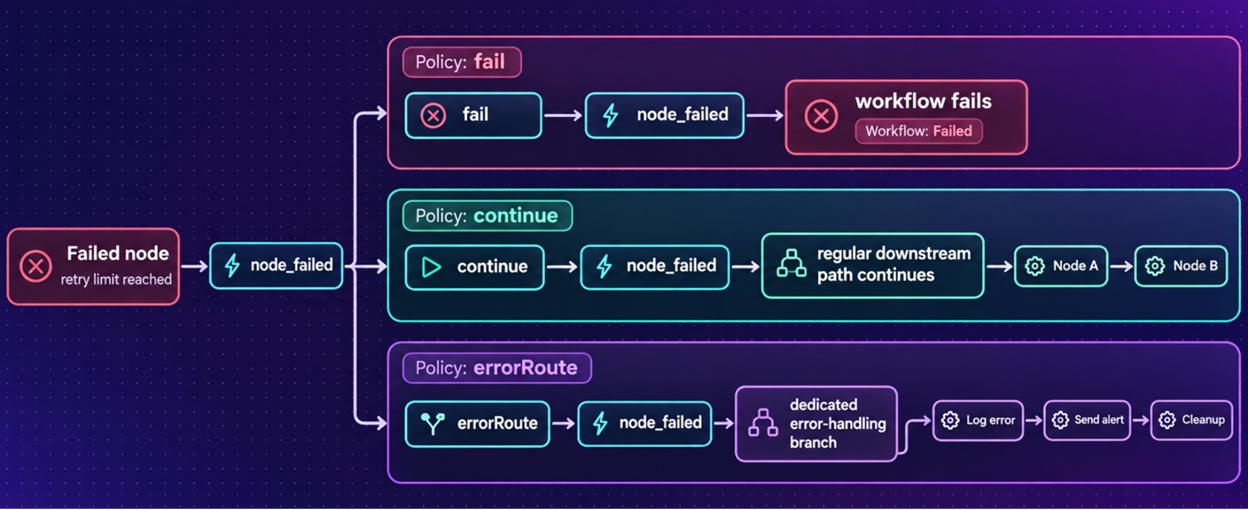
Workflow Builder supports 3 error policies on graph nodes. They determine how the execution proceeds once a node has failed.
The default is fail.
A workflow that depends on a successful payment authorization, for example, might use fail when the authorization cannot be completed. A notification step may be configured with continue if the wider process can finish despite a delivery error.
For errorRoute, the graph must contain an outgoing edge using the reserved errorRoute source handle. If the node fails and no such edge exists, the execution can end with status incomplete.
Why a completed Temporal execution may still be incomplete in Workflow Builder
Workflow Builder can mark a run as incomplete when a branching node selects a port that has no connected outgoing edge. The graph has reached a dead end without an exception being thrown.
Temporal may show the Workflow Execution as Completed, because its Workflow code returned normally. The application-level run status still indicates that the intended route wasn't completed.
The same situation can occur when an errorRoute policy names a failure branch that hasn't been connected.
A support team investigating the run should inspect its application-level status and the graph definition alongside Temporal Event History.
Successful execution of the Temporal Workflow code doesn't necessarily establish that every intended business step was completed.
For a closer look at the graph execution model, see Workflow Builder's execution backend guide.
Execution history: what can you see after a run?
Temporal's Event History records the events associated with Workflow Execution. It provides engineers with information about Activity attempts, failures, and the progression of the workflow over time.
Workflow Builder adds execution events that can be stored and displayed within the host application.
The reference backend uses PostgreSQL for execution records and Server-Sent Events (SSE) to stream updates. Its AI Studio reference application displays node states on the workflow canvas and shows results in an event log.
The Temporal plugin also includes each node's label as the Activity Summary, making it easier to recognize individual operations in Temporal Web UI.
Developers can therefore inspect a run through several surfaces:
Each surface answers a different operational question. Temporal Event History is particularly valuable for understanding execution behavior, while the graph snapshot provides context about the process the customer originally published.
Recorded inputs and failed steps
Workflow Builder's execution core records the configuration supplied to a node and the IDs of previously completed node outputs visible when execution began.
The reconstructNodeInputs utility can use recorded events to reconstruct the inputs available to a particular node. The resulting information is relevant when debugging a failed step or examining what data the executor received.
The execution model also distinguishes between different reasons for skipping a node. An unselected branch can produce a node_skipped event, while a downstream node may be skipped because all its predecessors were skipped.
A missing execution event isn't enough to establish that a node was deliberately skipped. The recorded event sequence provides better evidence.
There is an important limitation concerning sensitive data. Workflow Builder applies key-based redaction to execution events, but values stored under unrecognized keys may escape that filter. Temporal's own payloads can also contain sensitive inputs.
Applications handling confidential data should review their payload strategy and consider encryption through a Temporal Payload Codec.
Our Temporal integration guide discusses that requirement.
An operations checklist for investigating a failed workflow
When a customer reports that a workflow didn't complete, the investigation should follow the execution evidence before anyone changes the graph or retries an external operation.
- Find the execution ID and its current application-level status. Distinguish failed, incomplete, cancelled, and waiting.
- Inspect the graph snapshot. Check the definition used when the execution started, including node IDs and routing connections.
- Open Temporal Event History. Identify the failing Activity, the recorded attempts, and any timeout events.
- Read the failure code. Determine whether the executor classified it as permanent, transient, or unclassified.
- Check the node's Activity profile. Confirm the timeout and maximum attempt count actually used.
- Review the graph's error policy. Establish whether the failure should terminate execution, continue downstream, or follow an error route.
- Check side effects before retrying externally. An API request may have succeeded even when the Activity completion wasn't recorded.
- Inspect downstream events. Look for skipped nodes or dead ends that explain why the business process didn't reach its intended result.
A review of the event sequence can also reveal issues unrelated to retries. If the execution is waiting for a human decision, the next step may belong to the application's approval interface.
Workflow Builder's human approval guide explains the supported waiting and decision-delivery mechanism.
Making execution history understandable to customers
An operations engineer may be comfortable working in Temporal Web UI. A customer managing their own workflow will usually need a more focused view.
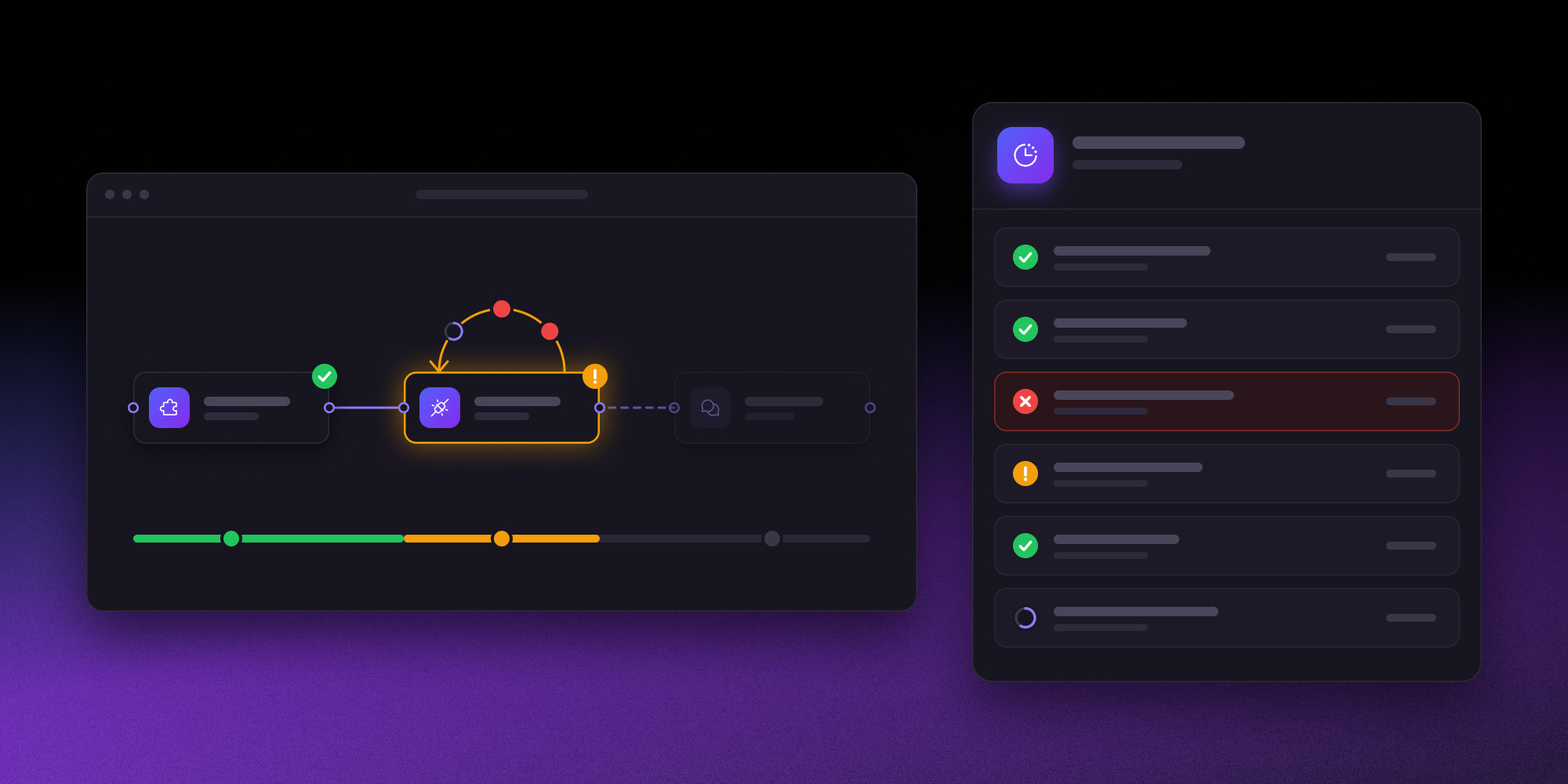
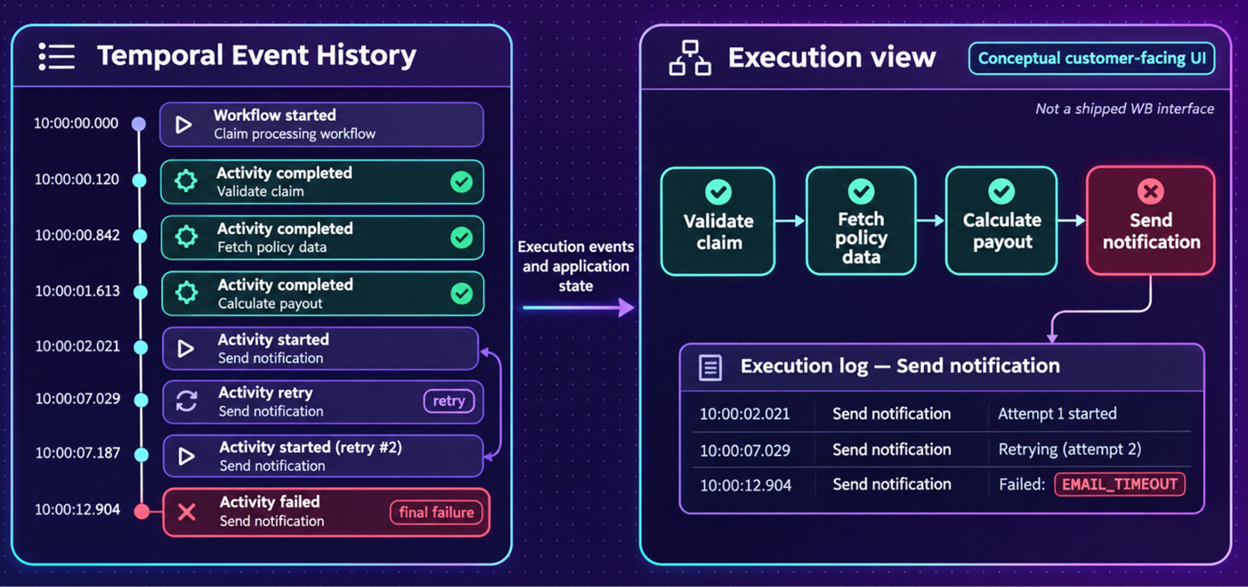
A product can use Workflow Builder's execution events to show the current state of each node directly on the workflow canvas. Completed steps provide context for the work already performed, while failed nodes can display an error message or code.
An application-level view should also make deliberate skips recognizable. A skipped node can be the expected result of a branching decision, and treating every skipped step as a warning would make ordinary runs unnecessarily difficult to interpret.
For products that expose workflow automation to customer support teams, the most relevant information often includes:
- The failed step and its error code, with enough detail to understand the problem.
- The steps that completed successfully, so the user knows how far execution progressed.
- The current run status, including whether a decision is pending or the graph ended incomplete.
- The workflow version, so the user can inspect the definition associated with the execution.
Workflow Builder's live execution visualization article covers the customer-facing side of monitoring. Our Temporal workflow UI guide explains how a visual layer can sit above Temporal's execution infrastructure.
Operational limits worth planning for
Before deploying Workflow Builder at scale, account for a few limitations of the current execution model:
- Parallel execution: The interpreter uses wave-based traversal. A waiting node can hold up the next wave, even when another branch has finished.
- Event History size: The plugin doesn't currently use Continue-As-New. Large graphs and long execution histories need monitoring against Temporal's limits.
- Event storage: Storage Activities may be retried, so writes must be idempotent. The reference backend uses execution IDs and sequence numbers to prevent duplicates.
- Security and retention: Tenant-aware authorization must protect execution records and decision endpoints. Longer-term business audit requirements may call for records beyond Temporal's configured history retention.
What Workflow Builder supports today
The current open-source stack supports node-level retry and timeout profiles, failure classification, and graph error policies (fail, continue, errorRoute). It also provides execution events and snapshots, with live visualization in the reference application.
Manual operator actions such as parking, retrying, or skipping arbitrary failed nodes aren't available as a complete, ready-made operator interface.
For implementation details, see the Temporal plugin README and execution-core documentation.
Make workflow failures easier to diagnose
Workflow Builder combines Temporal's durable execution with configurable failure policies and node-level execution events, giving SaaS teams the foundation to monitor customer-defined workflows and investigate failures.
Want to bring reliable workflow automation into your product? Explore the Workflow Builder Temporal integration orhttps://www.workflowbuilder.io/ https://www.workflowbuilder.io/talk to the Workflow Builder team about your implementation.
- How does Temporal retry a failed Activity?
When an Activity fails with a retryable error, Temporal schedules another attempt according to its Retry Policy: the initial interval, the backoff coefficient, the maximum interval, and the maximum number of attempts. The workflow keeps its recorded progress, so Temporal retries the failed Activity without running the completed steps again.
- How do you configure retries per node type in Workflow Builder?
The @workflowbuilder/temporal plugin runs each graph node as a Temporal Activity with a default profile of 2 attempts and a 10-minute startToCloseTimeout. Applications override that profile for individual node types through nodeActivityProfiles. The same map has to go to both the Worker plugin and createRunWorkflow, otherwise nodes can keep the default settings even when the Worker starts successfully.
- Which errors does Workflow Builder retry?
An executor can throw TransientNodeExecutionError when another attempt may succeed, for example after a rate limit, or PermanentNodeExecutionError when retrying is unlikely to change the result, for example with an invalid API key. Unclassified errors are retried according to the Activity profile. A transient classification doesn't raise the number of allowed attempts.
- What happens when a node exhausts its retries?
The node's error policy decides. With fail, the default, Workflow Builder records the failure and fails the workflow. With continue, it records the error and downstream processing goes on. With errorRoute, execution follows a dedicated error branch, and if no edge connects that branch, the run can end with status incomplete.
- Why can Temporal show a workflow as Completed when the run is incomplete?
Workflow Builder marks a run as incomplete when a branching node selects a port with no connected outgoing edge, or when an errorRoute policy names a failure branch that isn't connected. The Temporal Workflow code still returns normally, so Temporal shows the execution as Completed. Check the application-level status and the graph definition alongside Event History.
- How do you investigate a failed workflow run?
Start with the execution ID and its application-level status, then inspect the graph snapshot used when the run started. In Temporal Event History, find the failing Activity, its attempts, and any timeouts. Then check the failure classification, the node's Activity profile, and its error policy, and confirm external side effects before retrying anything.
A Content Marketing Specialist with 6 years of IT industry expertise, crafting everything from in-depth ebooks to strategic brand narratives. Weronika understands diverse tech audiences and ensures every piece delivers value in the most accessible way possible.